
WordPress Plugin Conflicts: How to Find and Fix Them Fast
WordPress Plugin Conflicts
Your WordPress site was working perfectly. Then you installed a new plugin, and suddenly your checkout page is broken, your site is throwing errors, or the whole thing loads like it is running on dial-up internet. Sound familiar?
WordPress plugin conflicts are one of the most common and frustrating issues site owners face. With over 60,000 plugins in the WordPress repository and thousands more sold commercially, the chances of two plugins stepping on each other's toes are surprisingly high. Studies show that plugin conflicts account for roughly 50% of all WordPress errors.
The good news: plugin conflicts are almost always fixable. The bad news: finding the culprit can feel like searching for a needle in a haystack, especially if you are running 20 or 30 plugins (which most WooCommerce stores do).
This guide walks you through everything you need to know about WordPress plugin conflicts. You will learn how to spot them, find the exact plugin causing trouble, fix the issue, and prevent conflicts from happening again. Whether you are a site owner, a developer, or an agency managing multiple WordPress sites, this post has you covered.
Table of Contents
- What Are WordPress Plugin Conflicts?
- Common Signs of Plugin Conflicts
- Why Plugin Conflicts Happen
- How to Find the Conflicting Plugin
- 7 Ways to Fix Plugin Conflicts
- Preventing Plugin Conflicts Before They Happen
- Plugin Conflicts and WooCommerce Stores
- Tools That Detect Plugin Conflicts Automatically
- When to Contact Plugin Developers
- Frequently Asked Questions
What Are WordPress Plugin Conflicts?
A plugin conflict happens when two or more WordPress plugins interfere with each other's functionality. Instead of working independently, they clash over shared resources, code libraries, or WordPress hooks, causing unexpected behavior or outright errors.
Think of it like two kitchen appliances plugged into the same outlet. Each works fine on its own, but together they trip the circuit breaker. WordPress plugins share a common environment (the WordPress core, the database, the PHP runtime), and sometimes their code collides.
Plugin conflicts can range from minor (a button style looks wrong) to catastrophic (your entire site shows a white screen of death). They can happen immediately after installing a plugin or appear weeks later when a plugin update changes how it interacts with others.
Types of Plugin Conflicts
- Plugin vs. Plugin: Two plugins try to do the same thing or use the same JavaScript library. This is the most common type.
- Plugin vs. Theme: A plugin's CSS or JavaScript clashes with your active theme's code.
- Plugin vs. WordPress Core: A plugin uses deprecated functions or is not compatible with your WordPress version.
- Plugin vs. PHP Version: A plugin requires a different PHP version than your server runs.
- Plugin vs. Server Environment: A plugin needs specific server configurations (like certain PHP extensions) that are not available.
Common Signs of Plugin Conflicts
Plugin conflicts do not always announce themselves with a clear error message. Often, the symptoms are subtle and can be mistaken for other issues. Here are the most common signs:
Visual and Layout Issues
- Elements overlapping or appearing out of place
- Styles and formatting suddenly changing
- Missing buttons, forms, or widgets
- Images not loading or displaying incorrectly
- Mobile layout breaking while desktop looks fine (or vice versa)
Functionality Problems
- Forms not submitting or losing data
- Shopping cart not adding products
- Checkout process failing or redirecting to wrong pages
- Search not returning results
- Login or registration not working
- Scheduled tasks (like email notifications) not firing
Performance Issues
- Pages loading significantly slower than before
- High server resource usage (CPU or memory spikes)
- Database queries taking too long
- Timeouts on specific pages
Error Messages
- White Screen of Death (WSOD): A completely blank page, usually caused by a fatal PHP error
- 500 Internal Server Error: The server cannot process the request due to a PHP fatal error
- PHP warnings and notices: Messages like "Cannot redeclare function" or "Call to undefined method"
- JavaScript console errors: "Uncaught TypeError" or "$ is not defined" in the browser console
For WooCommerce stores, plugin conflicts are especially dangerous because they can silently break your checkout process, costing you sales without any visible error on the frontend. Learn more about keeping your store healthy in our guide on WordPress Speed Optimization.
Why Plugin Conflicts Happen
Understanding why conflicts occur helps you prevent them. Here are the most common root causes:
1. Shared JavaScript Libraries
Multiple plugins loading their own version of jQuery, Bootstrap, or other JavaScript libraries is the single most common cause of conflicts. When two different versions of jQuery load on the same page, scripts break in unpredictable ways.
2. Overlapping Functionality
Running two SEO plugins, two caching plugins, or two security plugins at the same time is a recipe for disaster. They both try to modify the same WordPress hooks and filters, creating race conditions where the output depends on which plugin loads first.
3. Poor Coding Practices
Not every plugin developer follows WordPress coding standards. Common issues include not prefixing function names (leading to "cannot redeclare function" errors), using global variables that clash with other plugins, and not properly enqueueing scripts and styles.
4. WordPress Hook Priority Conflicts
WordPress uses a hook system (actions and filters) to let plugins modify behavior. When two plugins hook into the same action at the same priority level, the execution order becomes unpredictable. One plugin might override the other's changes without either developer intending it.
5. Database Table Collisions
Some plugins create custom database tables. If two plugins try to create tables with the same name, or if they modify the same core WordPress tables in conflicting ways, data corruption or errors can result.
6. PHP Version Incompatibility
As WordPress moves to support newer PHP versions, older plugins may use deprecated functions that generate warnings or fatal errors. Running PHP 8.2 with a plugin built for PHP 7.4 can cause unexpected behavior.
7. Update-Triggered Conflicts
A plugin that worked perfectly for months can suddenly conflict after an update. This happens when a plugin update changes its internal API, modifies how it hooks into WordPress, or starts bundling a new JavaScript library that conflicts with another plugin.
How to Find the Conflicting Plugin
Finding the offending plugin is the hardest part. Here is a systematic approach that works every time:
Step 1: Check the Timing
Ask yourself: When did the problem start? If you can link it to a specific plugin installation or update, you have your prime suspect. Check your plugin update history in the WordPress dashboard under Dashboard > Updates, or look at the modification dates in wp-content/plugins/.
Step 2: Check the Error Log
Enable WordPress debug logging by adding these lines to your wp-config.php file:
define('WP_DEBUG', true);
define('WP_DEBUG_LOG', true);
define('WP_DEBUG_DISPLAY', false);
Then reproduce the issue and check wp-content/debug.log. The error messages often point directly to the conflicting plugin's file path.
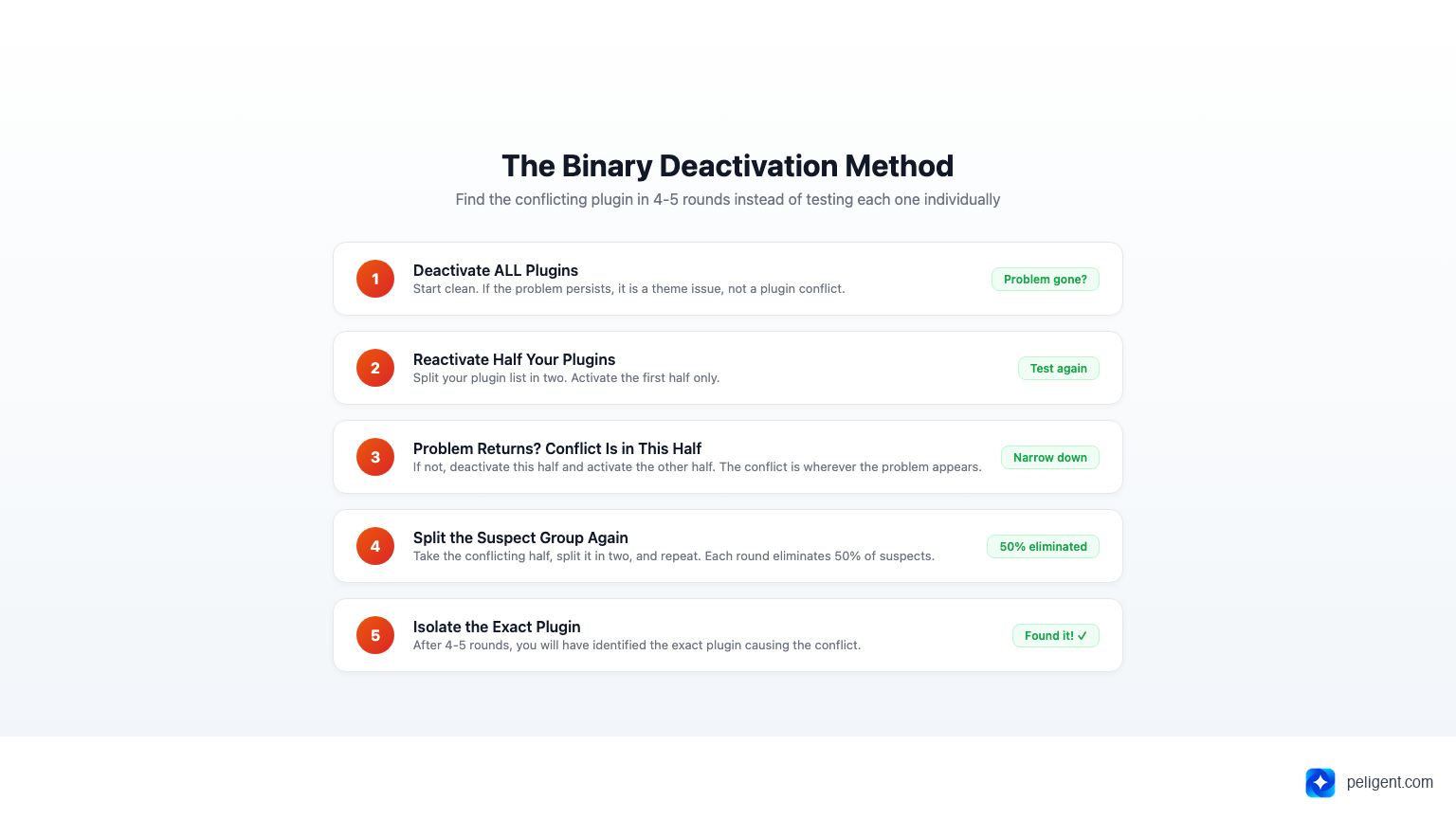
Step 3: The Binary Deactivation Method
If the error log does not reveal the culprit, use the binary search method. This is faster than disabling plugins one by one:
- Deactivate ALL plugins at once
- Check if the problem is gone. If not, it is a theme issue, not a plugin conflict.
- Reactivate half of your plugins
- Check again. If the problem returns, the conflict is in this half. If not, it is in the other half.
- Repeat: split the suspect group in half and test again
- Continue until you isolate the exact plugin
For a site with 20 plugins, the binary method finds the conflict in 4 to 5 rounds of testing instead of 20 individual tests.
Step 4: Check the Browser Console
Open your browser's developer tools (F12) and check the Console tab. JavaScript errors often include the file path of the plugin causing the issue. Look for messages like:
Uncaught TypeError: $.fn.slider is not a function
    at wp-content/plugins/some-plugin/js/main.js:42
That file path tells you exactly which plugin is involved.
Step 5: Use a Staging Environment
Never troubleshoot on your live site if you can avoid it. Most hosting providers offer one-click staging environments. Clone your site, then do your binary deactivation testing on the staging copy. Zero risk to your live traffic and sales.
7 Ways to Fix Plugin Conflicts
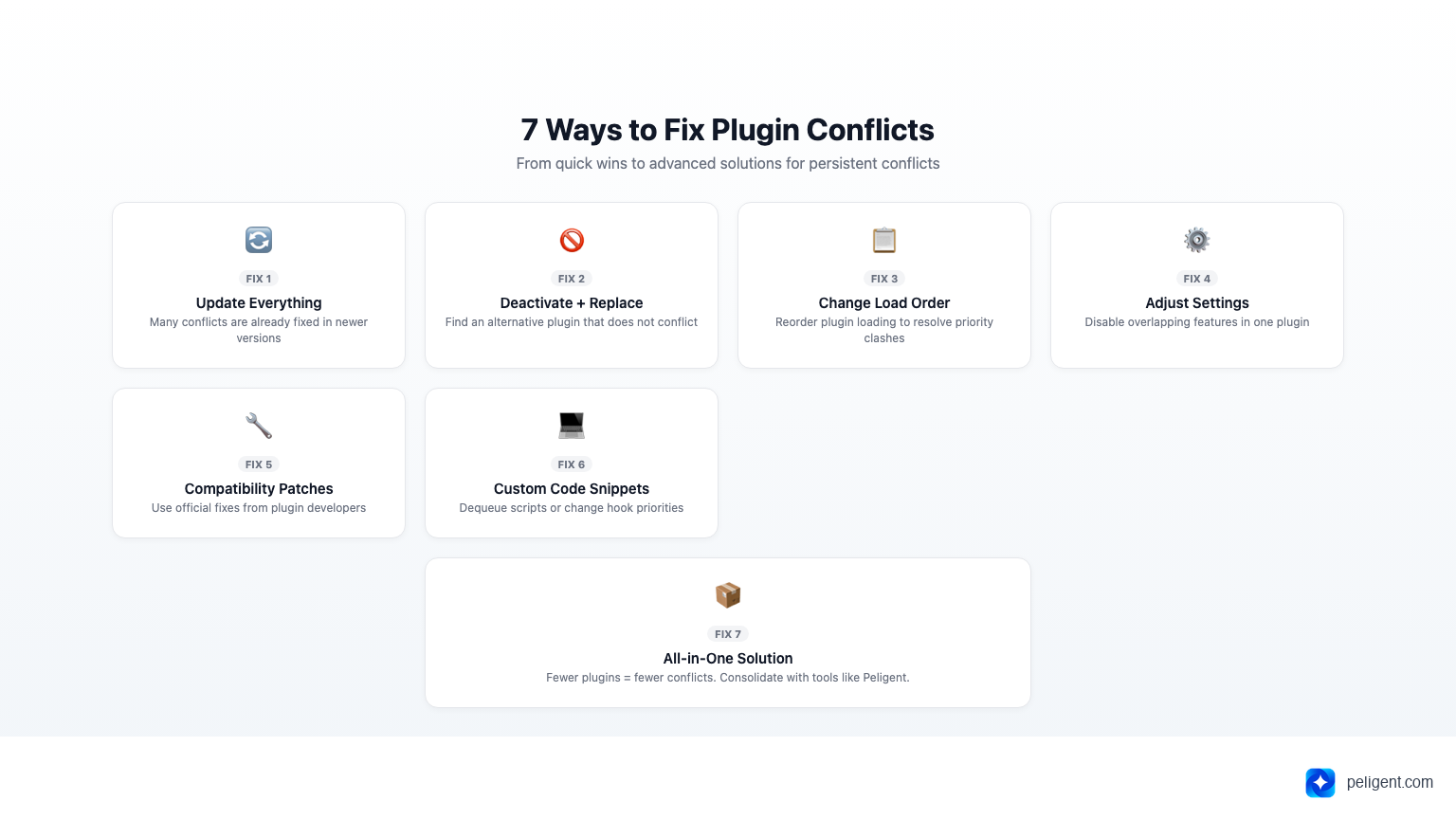
1. Update Everything
Before you start troubleshooting, make sure WordPress core, all plugins, and your theme are up to date. Many conflicts are caused by version mismatches that have already been fixed in newer releases. Update one thing at a time and test after each update.
2. Deactivate the Conflicting Plugin
The simplest fix. If you found the conflicting plugin and it is not essential, deactivate it and find an alternative. The WordPress plugin repository has multiple options for almost every functionality. Look for plugins that are actively maintained, have high ratings, and are tested with your WordPress version.
3. Change the Plugin Load Order
Some conflicts can be resolved by changing which plugin loads first. You can do this with the "Plugin Load Order" plugin or by manually renaming plugin folders (WordPress loads plugins alphabetically by folder name). This works when two plugins hook into the same action and the execution order matters.
4. Adjust Plugin Settings
Sometimes the conflict is not between the plugins themselves but between specific features within them. For example, two plugins might both try to minify JavaScript. Disabling the minification feature in one of them resolves the conflict without deactivating either plugin entirely.
5. Use Compatibility Patches
Some popular plugin combinations have known conflicts with official fixes. Check the plugin's documentation, support forums, and FAQ pages. Many developers provide compatibility snippets or settings specifically designed to work alongside other popular plugins.
6. Add Custom Code Snippets
For developers, adding a small code snippet to your theme's functions.php (or better, a site-specific plugin) can resolve conflicts. Common fixes include:
// Dequeue a duplicate jQuery version
add_action('wp_enqueue_scripts', function() {
    wp_dequeue_script('duplicate-jquery');
}, 100);

// Change a hook priority to avoid collision
remove_action('wp_head', 'conflicting_function', 10);
add_action('wp_head', 'conflicting_function', 20);
7. Replace With an All-in-One Solution
If you are running 5 separate plugins for SEO, caching, security, image optimization, and analytics, consider replacing them with a comprehensive solution that handles multiple functions. Fewer plugins means fewer potential conflicts.
For WooCommerce stores, Peligent takes this approach by combining AI-powered monitoring, content generation, photo enhancement, and bulk editing into a single plugin. Instead of running separate plugins for each function (and dealing with the inevitable conflicts), you get one plugin that handles it all. Peligent's Plugin Health Bot also scans your plugins daily for conflicts, outdated versions, and broken integrations, catching problems before they affect your store.
Preventing Plugin Conflicts Before They Happen
An ounce of prevention is worth a pound of debugging. Follow these practices to minimize conflicts:
Before Installing Any Plugin
- Check the "Last Updated" date: Avoid plugins not updated in 6+ months
- Read the reviews: Look for mentions of conflicts with plugins you use
- Check "Tested up to": Make sure it is tested with your WordPress version
- Review the support forum: Unresolved conflict reports are a red flag
- Count active installations: Higher numbers generally mean better compatibility testing
Ongoing Maintenance
- Update plugins regularly but not blindly. Read changelogs before updating.
- Test updates on staging first. Never update directly on production during peak hours.
- Keep a plugin inventory. Document what each plugin does and why you need it.
- Remove unused plugins. Deactivated plugins can still pose security risks and occasionally cause conflicts.
- Limit plugin count. Every additional plugin increases conflict risk. Aim for the minimum number needed.
Development Best Practices
- Use child themes so theme updates do not wipe custom compatibility fixes
- Implement version control. Git makes it easy to identify exactly when a conflict was introduced.
- Set up automated monitoring. Tools that check your site health daily catch conflicts early, before customers notice.
For more on keeping your WordPress site running smoothly, check out our guide on WordPress Speed Optimization: 15 Proven Ways to Speed Up Your Site.
Plugin Conflicts and WooCommerce Stores
WooCommerce stores are especially vulnerable to plugin conflicts for several reasons:
Higher plugin count. The average WooCommerce store runs 20 to 40 plugins: WooCommerce itself, payment gateways, shipping calculators, SEO tools, security plugins, marketing tools, analytics, and more. Each additional plugin increases the conflict surface area.
Revenue impact. A broken checkout page on a blog means lost engagement. A broken checkout page on a WooCommerce store means lost sales. Every minute of downtime has a direct financial cost.
Complex JavaScript interactions. WooCommerce's cart, checkout, and product pages rely heavily on JavaScript. Payment gateways add their own scripts. Shipping calculators add theirs. Add a popup plugin and a live chat widget, and you have 6+ JavaScript files all trying to manipulate the same pages.
Update frequency. WooCommerce releases updates frequently, and each update can change internal APIs that other plugins depend on. A "minor" WooCommerce update can break payment gateway integrations that worked fine the day before.
Most Common WooCommerce Plugin Conflicts
- Payment gateway vs. checkout optimization plugins: Both modify the checkout flow
- Caching plugins vs. cart/checkout: Caching dynamic cart data breaks WooCommerce
- SEO plugins vs. WooCommerce structured data: Duplicate schema markup confuses Google
- Page builders vs. WooCommerce templates: Custom templates override WooCommerce's default product pages
- Multi-currency plugins vs. payment gateways: Price conversion conflicts during checkout
If you are running a WooCommerce store, automated monitoring is not optional. Peligent's Plugin Health Bot checks your plugins daily, identifies conflicts, flags outdated versions, and alerts you to broken integrations before they cost you sales. It runs automatically and delivers actionable reports, so you never have to manually debug plugin conflicts again.
Related: WooCommerce Customer Retention: 10 AI-Powered Strategies That Work and WooCommerce AI: How Artificial Intelligence Is Changing Online Stores in 2026.
Tools That Detect Plugin Conflicts Automatically
Manual conflict detection works, but it is time-consuming. These tools can help automate the process:
Built-in WordPress Tools
- Site Health (Dashboard > Tools > Site Health): WordPress's built-in diagnostic tool checks for common issues including plugin conflicts and PHP compatibility
- Recovery Mode: When a fatal error occurs, WordPress automatically sends an admin email with a recovery link that lets you log in and fix the issue
- Debug Log: The wp-content/debug.log file records PHP errors with file paths pointing to the source
Free Conflict Detection Plugins
- Health Check and Troubleshooting: Official WordPress plugin that lets you disable plugins and switch themes in a private session without affecting live visitors
- Query Monitor: Advanced debugging plugin that shows database queries, hooks, PHP errors, and HTTP requests per plugin
- WP Crontrol: Monitors scheduled tasks and identifies plugins that register broken cron events
AI-Powered Monitoring
Traditional tools require you to actively check for problems. AI-powered solutions like Peligent flip this model by continuously monitoring your plugins and alerting you proactively. Peligent's Plugin Health Bot runs daily scans that check for version conflicts, deprecated function usage, and compatibility issues with your WordPress and PHP versions. Instead of discovering a conflict when a customer reports a broken checkout, you get an alert with the specific conflict and recommended fix before anyone notices.
For a broader look at AI tools for WordPress, see our guide on Top 10 AI Plugins for WordPress in 2026.
When to Contact Plugin Developers
Sometimes you cannot fix a conflict yourself. Here is when and how to reach out to plugin developers effectively:
When to contact them:
- You have confirmed a conflict between two specific plugins using the binary deactivation method
- The conflict persists across different themes and fresh WordPress installations
- The issue started after a specific plugin update
- You found a PHP error in the debug log that points to the plugin's code
How to write an effective support request:
- State the conflict clearly: "Plugin X version 3.2 conflicts with Plugin Y version 5.1"
- Include your environment: WordPress version, PHP version, theme name
- Describe the symptoms: What happens, what should happen
- Share the debug log error (relevant lines only)
- Mention what you have tried: "I confirmed this using binary deactivation with all other plugins disabled"
A well-written support request with specific conflict details gets resolved 3x faster than a vague "your plugin broke my site" message.
Frequently Asked Questions
Can deactivated plugins cause conflicts?
Deactivated plugins should not cause functional conflicts because their code does not execute. However, they can still pose security risks if they contain vulnerabilities, and in rare cases, leftover database entries from deactivated plugins can interfere with other plugins. Best practice: delete plugins you are not using, not just deactivate them.
How many plugins is too many for WordPress?
There is no magic number. A well-coded site can run 50+ plugins without issues, while a poorly coded site might conflict with just 5. Focus on quality over quantity: use reputable, actively maintained plugins, avoid functionality overlap, and remove anything you do not actively need. For WooCommerce stores, 20 to 30 plugins is typical.
Will switching themes fix plugin conflicts?
It depends. If the conflict is plugin-vs-theme (CSS/JavaScript clashes), switching to a default theme like Twenty Twenty-Five will confirm this. If the conflict is plugin-vs-plugin, switching themes will not help. Testing with a default theme is actually the recommended first step in troubleshooting because it immediately rules out theme-related issues.
Can plugin conflicts cause data loss?
In extreme cases, yes. Database table collisions or conflicting migration scripts can corrupt data. This is why you should always back up your site before installing new plugins, running updates, or troubleshooting conflicts. Use a reliable backup plugin that stores copies off-site.
How do I prevent conflicts after WordPress core updates?
Wait 1 to 2 weeks after a major WordPress release before updating. This gives plugin developers time to release compatibility patches. Always test on a staging environment first. Enable auto-updates only for minor/security releases, not major versions. And monitor your error log after every update for early warning signs of conflicts.
Written by
Wana DaliriAI content writer at Peligent. Covering WordPress, WooCommerce, and AI for e-commerce.
Enjoyed this article?
Subscribe to get more WooCommerce insights delivered to your inbox.
Related Articles
View all
Top WooCommerce Stores: 50 Successful Examples and What They Sell
Top WooCommerce Stores: 50 Successful Examples and What Makes Them Profitable WooCommerce has evolved from a simple WordPress plugin into the world's most popular ecommerce platform, powering over 6.5 million online stores worldwide. From bootstrapped startups to Fortune 500 companies, businesses across every conceivable industry rely on
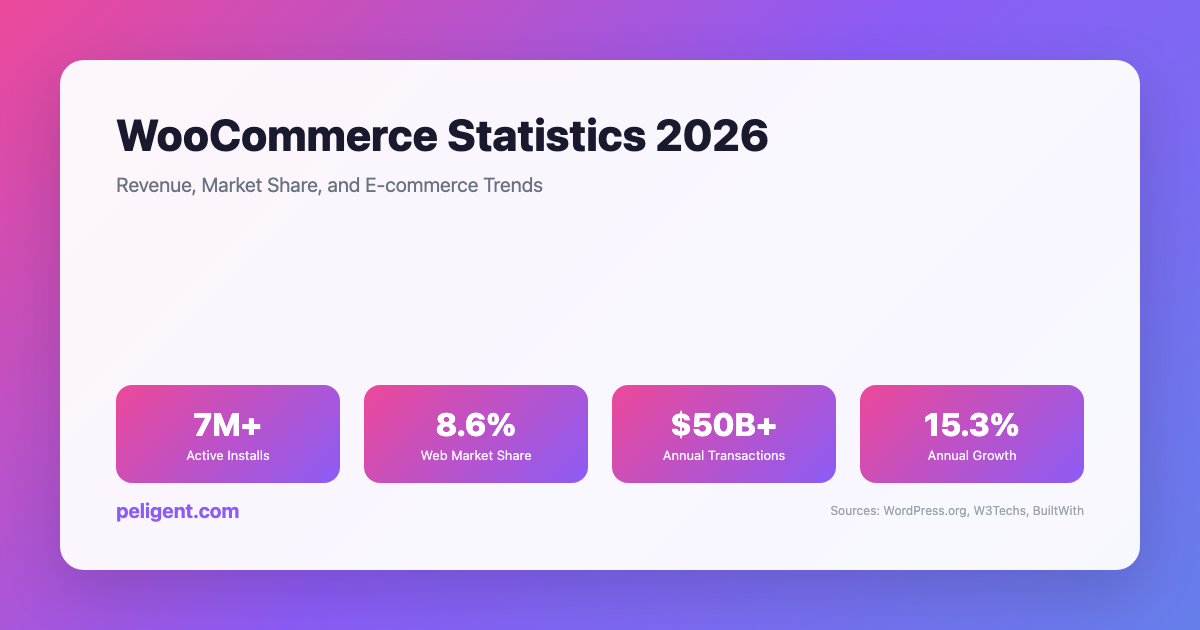
WooCommerce Statistics 2026: Revenue, Market Share, and E-commerce Trends
WooCommerce Statistics 2026: Market Share, Growth, and E-commerce Data WooCommerce has emerged as one of the world's most powerful and popular e-commerce platforms, transforming how businesses sell online. Built as a WordPress plugin, WooCommerce has grown from a simple e-commerce solution to a comprehensive platform powering millions of
AI Product Photo Enhancement for WordPress: Transform Your Store Images
Picture this: a shopper lands on your WooCommerce product page, glances at the photo for maybe half a second, and decides whether to stay or bounce. If the image looks dim, cluttered, or amateurish, they are gone before they even read the product title. If it looks clean, bright, and