
WooCommerce CSV Import: How to Bulk Upload Products Without the Headaches
A practical 2026 guide to importing WooCommerce products from a CSV file, fixing the errors that break most imports, and cleaning up your catalog with AI.
Adding products to WooCommerce one at a time is fine when you have ten of them. When you have five hundred, or you are migrating a whole store, or a supplier just sent you a spreadsheet with the new season's catalog, doing it by hand is a slow and error prone nightmare. That is exactly what the CSV import tool is built for. It lets you push hundreds or thousands of products into your store in a single run.
The catch is that CSV imports fail more often than they should. A stray comma, the wrong encoding, a badly mapped column, and suddenly half your prices are missing or your descriptions landed in the SKU field. This guide walks through how the WooCommerce importer actually works, the errors that trip people up most, and how to turn a messy supplier spreadsheet into a clean, search ready catalog using AI.
Table of contents
- Why bulk CSV import matters for WooCommerce stores
- What a WooCommerce product CSV file contains
- How to import products with the built in importer
- The most common CSV import errors and how to fix them
- Importing variable products and product images
- Clean up imported products with AI
- WooCommerce CSV import best practices checklist
- Frequently asked questions
Why bulk CSV import matters for WooCommerce stores
Bulk import is one of those features you ignore until the day you desperately need it. There are a handful of moments where it stops being a convenience and becomes the only sane option.
The first is launch. If you are putting a new store live, you rarely build the catalog inside WordPress from scratch. The product data already lives somewhere, in a supplier feed, an old platform export, or a spreadsheet your team has been maintaining. Importing it in one pass beats retyping every field.
The second is migration. Moving from Shopify, Magento, or a custom system almost always runs through a CSV file as the common format. The same is true when you switch suppliers and inherit a fresh price list.
The third is seasonal and catalog scale work. A store with a few thousand SKUs cannot reprice, restock, or rotate collections by hand. Exporting, editing in bulk, and re importing is the standard workflow, and it pairs naturally with the kind of mass updates we cover in our guide to WooCommerce bulk edit.
The payoff is real. A clean import can put hundreds of products online in minutes instead of days. The risk is just as real: a sloppy import creates broken products that quietly hurt sales and SEO until someone notices. Getting the file right is most of the battle.
What a WooCommerce product CSV file contains
A WooCommerce product CSV is just a spreadsheet where each row is one product and each column is one field. The importer reads the header row to figure out what each column means. The most important columns are the ones that define the product itself.
Core columns you will almost always use
- Name: the product title that shoppers see.
- SKU: a unique stock keeping unit. This is the anchor the importer uses to tell products apart and to update existing ones, so every SKU must be unique.
- Type: simple, variable, variation, grouped, or external. This tells WooCommerce what kind of product to build.
- Regular price and Sale price: numeric values, with a dot as the decimal separator.
- Categories and Tags: how the product is organized and filtered.
- Description and Short description: the long and short product copy.
- Stock and In stock?: inventory count and availability.
- Images: a URL, or several URLs, pointing to product images.
The official WooCommerce CSV importer documentation lists every supported column, including custom attributes and meta fields. You do not need all of them. The fastest way to get a perfect template is to add one product manually inside WooCommerce, then use the Export button to download a CSV. That file shows you the exact column names WooCommerce expects, and you can fill in the rest of your products underneath that header row.
Three formatting rules matter before you go further. Save the file as UTF-8 so accented characters and symbols survive. Use a dot for decimals in prices and nothing for thousands separators. And if a field like a description contains a comma, wrap the whole field in double quotes so the importer does not treat that comma as a new column.
How to import products with the built in importer
WooCommerce ships with a CSV importer, so you do not need a plugin for a basic import. Here is the full flow.
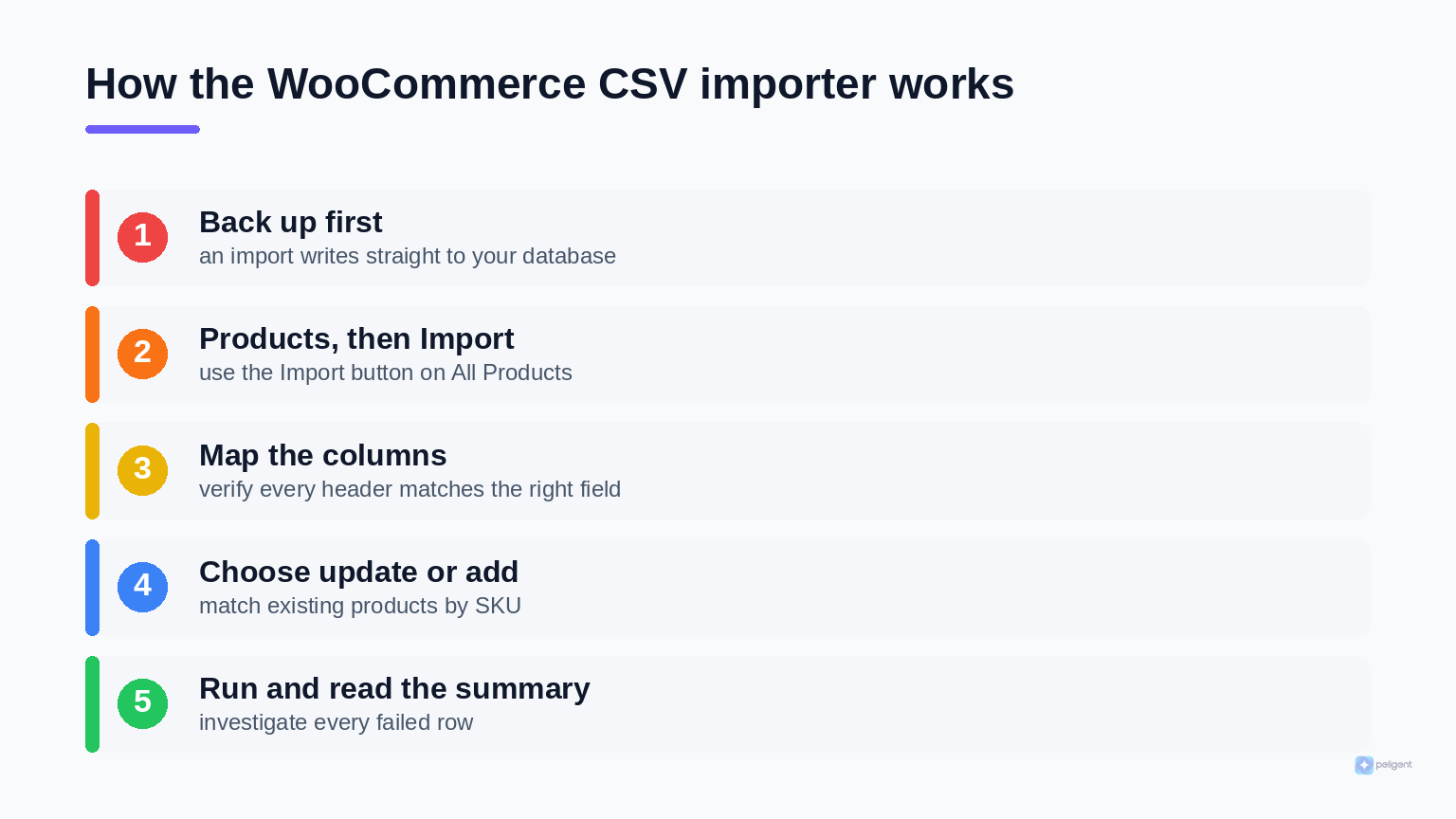
- Back up your store first. An import writes directly to your database. If something goes wrong, a backup is the difference between a five minute restore and a lost weekend.
- Go to Products, then All Products. At the top of the screen, next to Add New, you will see Import and Export buttons.
- Click Import and choose your file. Select the CSV you prepared and continue.
- Map the columns. WooCommerce shows a column mapping screen and tries to match your headers to its fields automatically. Check every row. Anything it cannot match, you set manually from the dropdown, or choose Do not import to skip it.
- Decide on updates. There is a checkbox to update existing products that match by SKU or ID. Tick it when you are refreshing a catalog, leave it unticked when you are adding brand new products.
- Run the importer. Click Run the Importer and do not close or refresh the tab. Large files take time. When it finishes, WooCommerce reports how many products were imported, updated, skipped, or failed.
That failed count is the one to watch. A successful run with twenty failures means twenty products silently did not make it. Always read the summary and click through to see which rows failed and why. If your store throws errors during or after an import, our guide to WooCommerce error log monitoring shows how to find the root cause fast instead of guessing.
The most common CSV import errors and how to fix them
Almost every failed import comes down to a short list of repeat offenders. Here are the ones that cause the most pain and how to fix each.
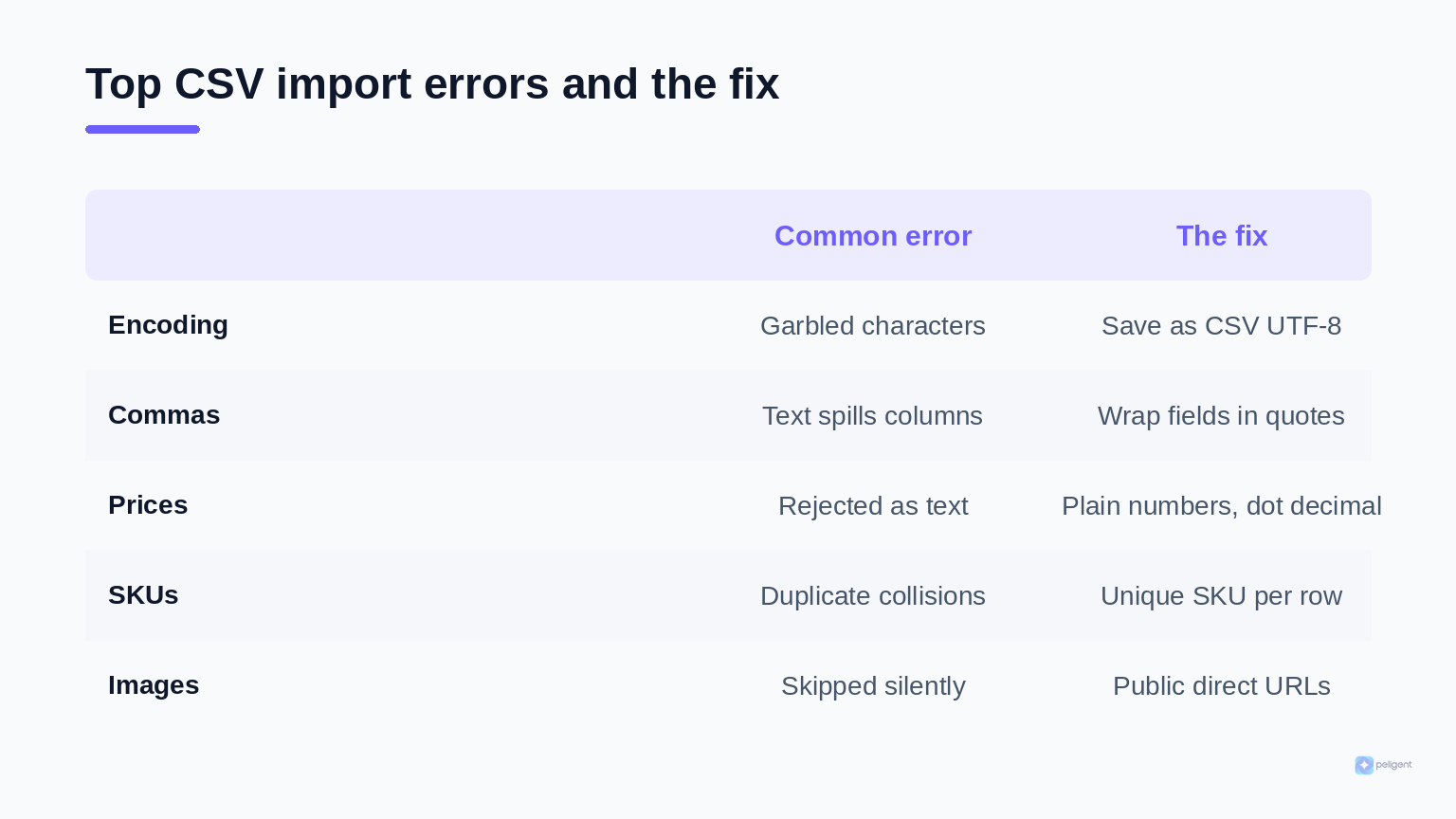
1. Wrong file encoding
Files saved from Excel as Windows-1252 fail quietly, turning accented letters and currency symbols into garbled characters. Always save as CSV UTF-8. Google Sheets exports clean UTF-8 by default, which is one reason many store owners avoid Excel for this job.
2. Unescaped commas
Commas separate columns. If a product description or title contains a comma and the field is not wrapped in double quotes, the text spills into the next column and shifts everything after it. The fix is to quote any field that contains a comma. A proper spreadsheet export does this for you automatically.
3. Bad price formatting
Prices must be plain numbers with a dot for decimals. A comma as a decimal separator, a currency symbol, quotes around the number, or a stray letter all cause the importer to reject the value or treat it as text. Strip everything except digits and the decimal dot.
4. Duplicate or missing SKUs
SKU is the unique identifier. Two products sharing a SKU will collide, and the importer may refuse the duplicate. Missing SKUs make future updates much harder because there is no reliable key to match on. Give every product a unique SKU before you import.
5. Column mapping mistakes
If the mapping screen lines a column up with the wrong field, the data lands in the wrong place. Descriptions end up as SKUs, or prices become stock counts. Slow down on the mapping step and verify each row, especially custom columns the importer did not recognize.
6. Images that will not import
WooCommerce pulls images from URLs that must be publicly reachable. If the link is behind a login, a redirect, or a hotlink block, the image is skipped. Make sure every image URL opens directly in a browser with no redirect.
7. Server timeouts on large files
A file with thousands of rows and remote images can exceed your server's time or memory limits, leaving a half finished import. The fix is to split the file into smaller batches of a few hundred rows, or raise the PHP limits with help from your host.
8. Plugin conflicts
Occasionally another plugin hooks into the product save process and breaks the import. If products fail for no obvious reason, test with other plugins temporarily disabled. Our guide to finding and fixing WordPress plugin conflicts walks through the isolation process step by step.
Importing variable products and product images
Simple products are easy. Variable products, the ones with sizes, colors, or other options, are where most imports get messy, because a single product becomes many rows.
The pattern WooCommerce expects is one row for the parent variable product, followed by one row for each variation. The parent row uses the type variable and lists the attributes and their possible values. Each variation row uses the type variation, references the parent through the SKU or parent field, and sets the specific attribute values, its own SKU, price, and stock. Get the parent and child relationship right and the rest falls into place.
A few rules keep variable imports sane. Mark attributes used for variations as such on the parent row. Give every single variation its own unique SKU so stock and pricing stay accurate per option. And keep your attribute spelling perfectly consistent, because Small and small can be read as two different values.
Images deserve their own note. You can import a featured image and a gallery by listing URLs in the image column, separated by commas inside quotes. WooCommerce downloads each one into your Media Library during the import. Because remote image fetching is the slowest part of any import, hosting your images somewhere fast and reliable makes a big difference. Once they are in, you can sharpen and standardize them in bulk, which we cover in our guide to AI product photo enhancement for WordPress.
Clean up imported products with AI
Here is the truth nobody mentions in the import tutorials: the file you import is almost never good enough to sell from as is. Supplier feeds are full of thin, duplicated, or keyword stuffed descriptions. SEO fields are usually blank. Categories are inconsistent. The import gets the data into WooCommerce, but the data still needs work before it converts.
This is exactly where an AI co-pilot earns its keep. Instead of opening hundreds of freshly imported products one by one, Peligent works directly inside WordPress and WooCommerce to fix the catalog at scale.
- Rewrite weak descriptions in bulk. Turn flat supplier copy into unique, on brand product descriptions that read like a human wrote them. Our guide on writing WooCommerce product descriptions that sell shows the difference good copy makes.
- Generate missing SEO fields. Imported products almost always arrive without meta titles or descriptions. AI can write them across the whole catalog so your new products are not invisible on Google. Pair this with our WooCommerce SEO checklist.
- Clean up categories and tags. Auto sort imported products into the right categories and dedupe the messy tag list a supplier feed usually brings with it.
- Standardize the catalog. Fix inconsistent formatting, fill gaps, and apply changes across hundreds of products at once, the same bulk first approach behind our WooCommerce growth tips.
The workflow that wins is simple: import the raw data fast, then let AI turn it into a polished, search ready catalog. The boring spreadsheet becomes a storefront in a fraction of the time.
WooCommerce CSV import best practices checklist
- Back up your store before every import.
- Export one sample product first to get the exact column template.
- Save the file as CSV UTF-8, never plain Excel format.
- Give every product and variation a unique SKU.
- Use a dot for decimal prices and remove currency symbols.
- Wrap any field containing a comma in double quotes.
- Confirm every image URL opens directly with no redirect.
- Verify the column mapping screen row by row.
- Test with a small batch of ten products before importing thousands.
- Read the import summary and investigate every failed row.
- Clean up descriptions, SEO, and categories with AI after the import.
Frequently asked questions
Can I import products into WooCommerce without a plugin?
Yes. WooCommerce includes a built in CSV importer under Products, then All Products, using the Import button. It handles simple and variable products, images, categories, and most custom fields. Dedicated plugins add extras like scheduled imports, Google Sheets syncing, and XML support, but they are not required for a standard product import.
Why are my product images not importing?
The image URLs must be publicly accessible with no login, redirect, or hotlink protection in the way. If a link does not open directly in a private browser window, WooCommerce cannot fetch it. Large catalogs of remote images can also hit server time limits, so splitting the file into smaller batches helps.
How do I update existing products instead of creating duplicates?
Match products by SKU. On the import screen, tick the option to update existing products. WooCommerce then finds each row by its SKU and updates that product rather than creating a new one. This is why unique, consistent SKUs are so important for ongoing catalog management.
What format should prices be in the CSV file?
Prices must be plain numbers with a dot for the decimal point, such as 19.99, with no currency symbols, no thousands separators, and no quotes around the number. Any extra characters can cause the importer to reject the value or treat the price as text.
How many products can I import at once?
There is no hard limit, but very large files can exceed your server's memory or time limits and stop partway through. Batches of a few hundred to a thousand rows are a safe range on most hosting. If you need to import tens of thousands of products, raise the PHP limits or split the file into several runs.
Can AI fix my product data after importing?
Yes, and it is the step most stores skip. After importing raw supplier data, an AI co-pilot like Peligent can rewrite thin descriptions, generate missing SEO meta fields, and clean up categories and tags across the entire catalog at once, turning a basic import into a polished store far faster than editing each product by hand.
A WooCommerce CSV import is the fastest way to build or refresh a catalog, as long as you respect the formatting rules and read the error summary. Get the file clean, map the columns carefully, and let AI handle the polish. That is how you go from a raw spreadsheet to a store that is ready to sell in an afternoon.
Written by
Wana DaliriAI content writer at Peligent. Covering WordPress, WooCommerce, and AI for e-commerce.
Enjoyed this article?
Subscribe to get more WooCommerce insights delivered to your inbox.
Related Articles
View all
WooCommerce Product Recommendations: How AI Personalizes Every Visit
Default related products only match tags. See how AI product recommendations use real shopper behavior to lift conversions, order value, and revenue.

WooCommerce AEO: How to Get Your Products Recommended by AI
Answer engine optimization for WooCommerce: how to get your products cited and recommended by ChatGPT, Perplexity, and Google AI Overviews in 2026.


WooCommerce AI Chatbot: How to Add a Smart Shopping Assistant That Sells (2026)
A practical guide to adding an AI chatbot to your WooCommerce store in 2026: how it works, the features that matter, setup steps, and the best practices that turn chats into sales.