
AI Product Photo Enhancement for WordPress: Transform Your Store Images
Picture this: a shopper lands on your WooCommerce product page, glances at the photo for maybe half a second, and decides whether to stay or bounce. If the image looks dim, cluttered, or amateurish, they are gone before they even read the product title. If it looks clean, bright, and professional, they stick around, scroll, and maybe even add to cart.
That snap judgment happens on every single product page, every single visit. And here is the uncomfortable truth: most small store owners simply cannot afford professional photography for their entire catalog. A single product shoot runs anywhere from $25 to $75 per image. Multiply that across hundreds (or thousands) of SKUs and you are looking at a serious budget problem.
This is exactly where AI product photo enhancement for WordPress comes in. Instead of hiring a photographer or spending hours in Photoshop, you can use artificial intelligence to transform mediocre product shots into studio-quality images in seconds. We are talking background removal, lighting fixes, color correction, upscaling, and even lifestyle scene generation, all without touching a single editing tool manually.
In this guide, I will walk you through everything you need to know about using AI to upgrade your product photos. Whether you are running a brand-new WooCommerce store or managing an established catalog with hundreds of products, you will find practical advice you can put to work today.
Table of Contents
- Why Product Photos Make or Break Sales
- What Is AI Photo Enhancement?
- 6 Things AI Can Do to Your Product Photos
- Best AI Photo Enhancement Tools for WordPress
- How to Enhance Product Photos with AI (Step by Step)
- AI Enhanced vs. Professional Photography
- Optimizing Enhanced Photos for SEO and Speed
- Common Mistakes to Avoid
- Frequently Asked Questions
Why Product Photos Make or Break Sales
Let us get the numbers out of the way first, because they really drive the point home.
93% of consumers say visual appearance is the top deciding factor in a purchase. Not the price tag, not the star rating, not the shipping speed. The photo wins or loses the sale before anything else even registers.
Products with high-quality images receive 94% more views compared to products with low-quality photos. Better images do not just convert more visitors. They attract more eyeballs in the first place because platforms like Google Shopping, Pinterest, and social media algorithms actively favor sharp, high-quality visuals.
22% of e-commerce returns happen because the item "looked different" from the photo. Poor product photography does not only cost you sales up front. It creates returns, negative reviews, and customer support headaches that eat into your margins.
If you are running a WooCommerce store, your product images are competing directly against Amazon listings, polished Shopify stores, and big-box retailers who invest thousands into professional photography. If you are weighing WooCommerce vs. Shopify, image quality is one area where neither platform gives you an automatic advantage. You have to earn it. And with AI photo enhancement, earning it just got a lot cheaper and faster.
What Is AI Photo Enhancement?
AI photo enhancement uses machine learning models trained on millions of professional product images to automatically improve photo quality. Rather than manually tweaking brightness, contrast, and saturation in Photoshop, AI analyzes your photo and applies intelligent corrections in a matter of seconds.
Under the hood, neural networks have learned what "good" product photography looks like. When you feed in a so-so photo, the AI spots specific problems (poor lighting, noisy background, flat colors, low resolution) and fixes each one individually. The result is a photo that looks like it came from a professional studio, even if you shot it on your kitchen counter with a phone.
How It Differs from Traditional Editing
Traditional editing requires someone skilled in Photoshop or Lightroom. Each photo takes 5 to 30 minutes of manual effort. Results depend entirely on the editor's skill, and keeping quality consistent across hundreds of images is extremely tough.
AI enhancement is automated, consistent, and fast. The same model processes every photo with the same quality bar. A batch of 100 images that would take a human editor a full day can be processed by AI in minutes. And the consistency is remarkable because the AI applies the same learned standards to every single image.
If you want to understand how AI integrates with WordPress more broadly, our explainer on WordPress MCP covers the underlying technology that makes these AI connections possible.
6 Things AI Can Do to Your Product Photos
1. Background Removal and Replacement
This is the single most popular AI photo feature for online stores. AI detects the product in your image, strips away the background, and gives you a clean white canvas (the Amazon and marketplace standard) or whatever custom background you prefer.
Modern AI handles tricky edges surprisingly well: think jewelry, transparent bottles, flyaway hair, and delicate fabrics. What used to require 20 minutes of careful Photoshop masking now takes a single click.
You can also swap backgrounds for lifestyle scenes. Snap your coffee mug on your desk, then let AI place it in a cozy cafe setting, complete with matched lighting, shadows, and perspective.
2. Lighting and Exposure Correction
AI analyzes your photo's lighting and fixes the most common issues:
- Underexposed (too dark) shots get brightened intelligently, not just globally
- Overexposed (blown out) highlights get recovered with detail intact
- Harsh shadows get softened to mimic professional studio lighting
- Color temperature gets corrected, removing yellow indoor casts or blue outdoor tones
The big difference from a simple brightness slider is that AI understands the content of the image. It knows to brighten the product while keeping the background natural, instead of cranking everything up uniformly.
3. Resolution Upscaling
Got an old product photo stuck at 500x500 pixels? AI upscaling can push it to 2000x2000 or higher while generating genuine detail. Unlike old-school upscaling (which just makes pixels bigger and blurrier), AI uses generative models to fill in missing detail based on what the product should actually look like.
This is a lifesaver for stores that launched years ago with low-res images and now need to meet modern quality standards without reshooting their entire catalog.
4. Color Enhancement and Consistency
AI makes your product colors pop without crossing the line into unrealistic territory. It analyzes the color profile and boosts vibrancy, saturation, and contrast to professional levels while keeping colors true to life.
Even more useful: AI can normalize colors across your entire catalog. If some products were photographed under warm indoor lighting and others outside on an overcast day, AI can make them all look like they came from the same studio. That catalog-wide consistency makes your store feel polished and trustworthy.
5. Object Removal and Cleanup
AI removes unwanted elements from your shots: dust, scratches, stray price tags, background clutter that snuck into the frame. It fills in the removed areas with content-aware generation that blends seamlessly with the surrounding pixels.
6. Lifestyle and Context Generation
This is the newest and arguably most exciting AI capability. Photograph your product on a plain surface, and AI generates a complete lifestyle scene around it. A skincare bottle becomes part of a spa setting. A laptop bag appears in a sleek office. Running shoes land on a forest trail.
This is especially powerful for social media and ad creatives, where lifestyle imagery consistently outperforms plain product shots in engagement and click-through rates.
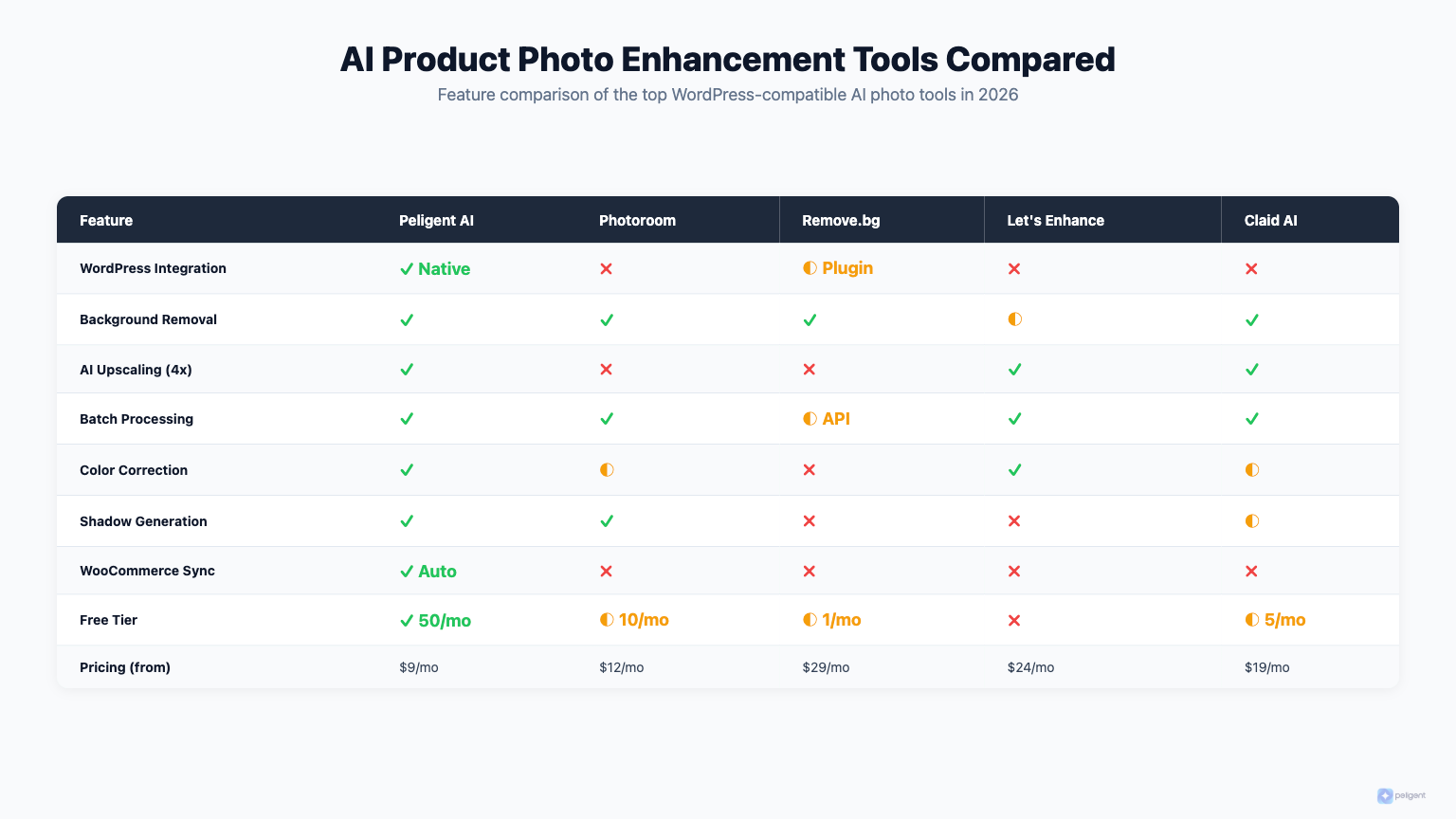
Best AI Photo Enhancement Tools for WordPress
1. Peligent (WordPress Plugin)
Peligent includes built-in AI photo enhancement designed specifically for WooCommerce product photos. The standout advantage is that everything happens inside your WordPress dashboard. You never need to export photos, process them in some external tool, and re-upload them.
Features include one-click background removal, lighting correction, and bulk processing for entire product catalogs. Since Peligent is an all-in-one WordPress AI plugin that also handles product descriptions, customer retention, and speed monitoring, you get photo enhancement alongside your other store management tools without piling on yet another plugin. That matters, because plugin conflicts are a real headache on WordPress.
Pricing: Free tier with 500,000 credits. Pro at $39/month.
2. Pixelcut
A web-based tool focused on e-commerce product photos. Solid background removal and batch processing. Since it is a standalone tool rather than a WordPress plugin, you will need to upload and download images manually.
Pricing: Free tier available, paid plans from $9.99/month.
3. PhotoRoom
Popular for AI background removal and scene generation. Creates professional product photos from phone snapshots. Available as both a mobile app and a web tool.
Pricing: Free with watermark, Pro from $12.99/month.
4. Claid.ai
An API-focused AI image enhancement service built for e-commerce platforms. Offers upscaling, background generation, and color correction. Best suited for developers or stores with very high volume needs.
Pricing: Pay-per-image, starting around $0.10/image.
5. Remove.bg + Canva
A popular free combo: use Remove.bg for background removal, then Canva for adding new backgrounds and basic enhancements. Not as automated as dedicated AI tools, but it works fine for stores with smaller catalogs.
Pricing: Remove.bg has a free tier (low resolution), paid from $1.99/image. Canva Pro is $12.99/month.
Picking the Right Tool
For WordPress and WooCommerce stores, integration is the deciding factor. Standalone tools mean extra steps: download from your site, upload to the tool, process, download again, re-upload to WordPress. Plugins like Peligent eliminate that friction by processing images directly in your media library. If you manage 50 or more products, the time savings from in-dashboard processing stack up fast. For a broader look at what AI can do for your store beyond photos, check out our roundup of top AI plugins for WordPress in 2026.
How to Enhance Product Photos with AI (Step by Step)
Step 1: Capture the Best Source Photo You Can
AI enhancement is powerful, but it is not magic. Better input means better output. A few basics go a long way:
- Use natural daylight or a simple $20 lightbox from Amazon
- Shoot against a plain, uncluttered surface
- Set your camera or phone to the highest resolution available
- Capture multiple angles of each product
- Keep the product in sharp focus and centered in the frame
Step 2: Remove or Replace the Background
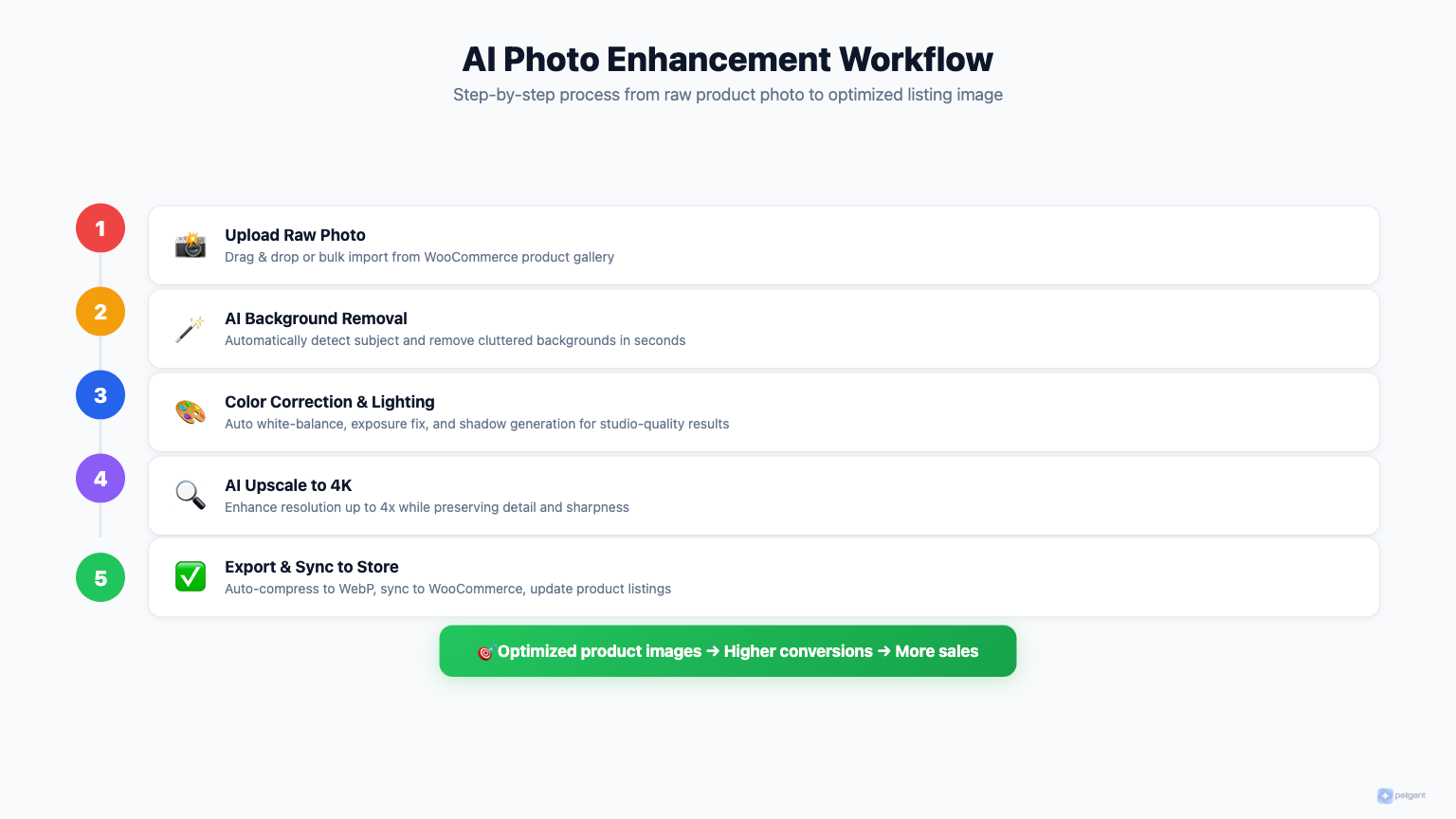
Background removal is typically the first AI enhancement to apply. It gives you a clean foundation. Most tools let you pick between a pure white background (best for marketplace listings and search results) or a custom scene.
For WooCommerce, a clean white background on your main product image is the standard best practice. Save lifestyle backgrounds for your gallery images and social media content.
Step 3: Fix Lighting and Colors
Apply AI lighting correction to even out shadows, brighten dark spots, and fix color temperature. If your tool supports batch processing, run all products in a category at once so the lighting stays consistent across your catalog.
Step 4: Upscale if Needed
WooCommerce product images should be at least 800x800 pixels, though 1200x1200 or higher is recommended for zoom functionality. If your source photos fall below that threshold, run them through AI upscaling before uploading.
Step 5: Optimize for Web Performance
AI-enhanced photos tend to be larger than the originals, so compression matters:
- Target under 200KB per thumbnail, under 500KB for full-size images
- Use WebP format for the best quality-to-size ratio
- Enable lazy loading in WordPress so images only load when scrolled into view
Keeping your store fast is non-negotiable. Our WordPress speed optimization guide covers 15 proven tactics for shaving seconds off your load times.
Step 6: Upload and Replace in WooCommerce
Upload the enhanced images to your WordPress media library and update your product listings. If you are using Peligent, this step is automatic because the enhancement happens in-place inside your dashboard.
For bulk updates across many products, WooCommerce AI tools can save hours of tedious manual work.
AI Enhanced vs. Professional Photography
Let us be honest about when AI is the right call and when you genuinely need a professional photographer.
AI enhancement wins when:
- You have hundreds of products and cannot justify $50+ per professional shot
- You need to update your catalog quickly (seasonal changes, new variants)
- Your products are relatively simple (packaged goods, accessories, electronics)
- You are bootstrapping and need "good enough" photos to start selling today
- You need consistent white backgrounds across a large catalog
- You are creating social media variations of existing product images
Professional photography wins when:
- Your products need specific styling (fashion on models, food photography, flatlay arrangements)
- You need unique lifestyle shots for brand storytelling campaigns
- You are launching a flagship product and need hero images for paid ads
- Your products have complex textures or finishes (highly reflective surfaces, intricate fabrics)
- You are targeting a luxury or premium market where image quality is a core brand signal
The smart approach for most WooCommerce stores: Invest in professional photography for your top 10 to 20 hero products and marketing campaigns. Use AI enhancement for everything else. This hybrid strategy gives you premium quality where it has the biggest impact while keeping costs manageable across the long tail of your product lineup.
Optimizing Enhanced Photos for SEO and Speed
Beautiful photos that tank your page speed or stay invisible to search engines are a wasted effort. Here is how to make sure your enhanced images pull their weight in both search rankings and site performance.
SEO Optimization
- Use descriptive file names: Rename "IMG_4521.jpg" to "blue-wireless-headphones-front-view.jpg" before uploading
- Add alt text to every image: Describe the product and its context. "Blue wireless headphones with active noise cancellation on white background" is far better than just "headphones" or blank alt text
- Set up structured data: Make sure your WooCommerce product schema includes image URLs so Google Shopping can index them properly
- Include images in your sitemap: Use an SEO plugin that adds images to your XML sitemap for better discoverability
For a complete walkthrough of WooCommerce search optimization, our WooCommerce SEO checklist covers everything from product schema to technical audits.
Performance Optimization
- WebP format: 25 to 35% smaller than JPEG at equivalent quality. All modern browsers support it now.
- Responsive images: WordPress generates multiple sizes automatically. Make sure your theme uses srcset so mobile visitors get appropriately sized files.
- Lazy loading: Built into WordPress since version 5.5. Images below the fold only load when the visitor scrolls to them.
- CDN delivery: Serve images from a CDN like Cloudflare or BunnyCDN to reduce load times for visitors around the globe.
- Smart compression: Tools like ShortPixel or Imagify compress without visible quality loss. Target 80 to 85% JPEG quality.
Peligent's Speed Monitor checks your page load times and flags when large images are dragging down specific product pages. Combined with AI photo enhancement, you get sharp, professional images that do not sacrifice performance.
Common Mistakes to Avoid
1. Over-enhancing your photos. AI can make colors too vivid, skin too smooth, or products too "perfect." If the enhanced photo looks noticeably different from the real product, expect returns and complaints. Always compare your enhanced images against the actual item before going live.
2. Using inconsistent styles. Mixing different AI tools or settings across products creates a jarring, patchwork catalog. Pick one tool and one set of settings, then apply them consistently to your entire product line.
3. Ignoring mobile. Over 70% of e-commerce browsing happens on phones. Check how your enhanced photos look on a mobile screen, not just your desktop monitor. Fine details that shine on a 27-inch display may vanish on a 6-inch phone.
4. Skipping compression. AI-enhanced photos often weigh 2 to 5MB each. Upload them raw and your product pages will crawl. Always compress before uploading.
5. Forgetting alt text. After investing time in enhancement, many store owners upload the finished images without adding alt text. That is both a missed SEO opportunity and an accessibility gap. Every product image deserves descriptive alt text.
6. Not A/B testing. Before enhancing your entire catalog, test AI-enhanced photos on a handful of products and compare conversion rates against the originals. Most stores see improvement, but the degree varies by product category.
7. Altering legally sensitive images. If you sell products with trademarked packaging or branded elements, be careful about AI modifications that might change brand assets in ways that violate trademark agreements. Always review your supplier and brand guidelines first.
Managing a growing WordPress site with multiple plugins and AI tools can get complex. If you run into issues, our guide on resolving WordPress plugin conflicts can help you troubleshoot.
Frequently Asked Questions
Does AI photo enhancement work with phone photos?
Absolutely. Modern smartphones take surprisingly solid source photos for AI enhancement. The key ingredients are decent lighting and a steady hand. A cheap phone tripod and natural window light, combined with AI enhancement, can produce results that rival professional studio shots for many product categories.
How much does AI photo enhancement cost per image?
Costs range from free (limited tools with watermarks) to roughly $0.10 to $0.50 per image for premium services. WordPress plugins like Peligent include photo enhancement as part of a broader feature set, starting free with 500,000 credits. For most small to medium WooCommerce stores, the total monthly cost lands well under $50.
Will Google penalize AI-enhanced product photos?
No. Google does not penalize AI-enhanced images. That said, Google Shopping policies do require that product images accurately represent the actual product. Enhancements like better lighting, clean backgrounds, and color correction are perfectly acceptable. What could cause problems is generating misleading representations that make a product look fundamentally different from what ships to the customer.
Can AI replace professional product photography entirely?
Not yet. AI excels at enhancement, background work, and batch processing, but for complex product categories like fashion, food, and luxury goods, professional photography still delivers superior results. The sweet spot for most stores is professional shots for your hero products plus AI enhancement for the broader catalog. For more on how AI fits into WooCommerce operations, read our deep dive on WooCommerce AI.
How long does AI photo enhancement take per image?
Most tools process a single image in 2 to 10 seconds. Batch processing 100 images typically takes 5 to 15 minutes depending on the tool and what enhancements you apply. Compare that to 5 to 30 minutes per image for manual Photoshop work. At scale, the time savings are enormous.
What is the best image format for WooCommerce product photos?
WebP is the current best choice for most stores. It delivers 25 to 35% smaller file sizes compared to JPEG at equivalent visual quality, and all modern browsers now support it. If you need to support very old browsers, JPEG remains a solid fallback. PNG is best reserved for images that require transparency, like products with removed backgrounds.
Can I use AI to enhance supplier-provided product images?
Yes, and this is actually one of the most common use cases. Many dropshipping and wholesale stores receive low-quality supplier images that need significant improvement before going live. AI enhancement can fix lighting, remove cluttered backgrounds, and upscale resolution. Just double-check your supplier agreements to make sure image modification is allowed, and be mindful of any trademarked packaging in the shots.
If you are looking to go beyond photo enhancement and explore what else AI can do for your WordPress store, our guide to WooCommerce MCP explains how the Model Context Protocol connects AI tools directly to your store data.
Written by
Wana DaliriAI content writer at Peligent. Covering WordPress, WooCommerce, and AI for e-commerce.
Enjoyed this article?
Subscribe to get more WooCommerce insights delivered to your inbox.
Related Articles
View all
Top WooCommerce Stores: 50 Successful Examples and What They Sell
Top WooCommerce Stores: 50 Successful Examples and What Makes Them Profitable WooCommerce has evolved from a simple WordPress plugin into the world's most popular ecommerce platform, powering over 6.5 million online stores worldwide. From bootstrapped startups to Fortune 500 companies, businesses across every conceivable industry rely on
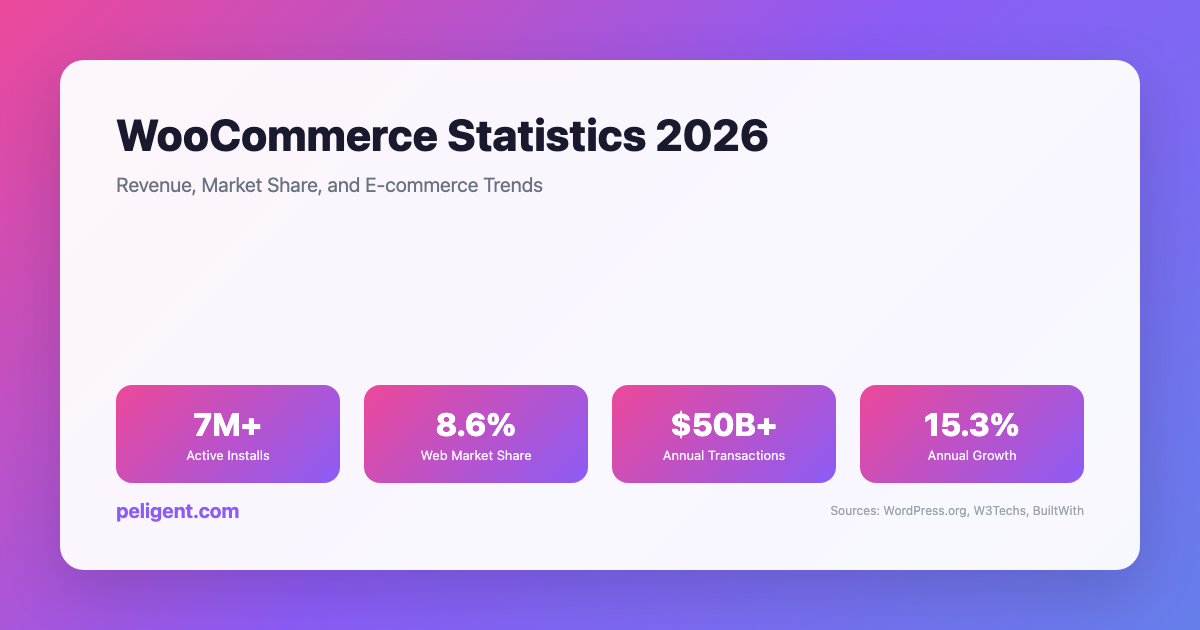
WooCommerce Statistics 2026: Revenue, Market Share, and E-commerce Trends
WooCommerce Statistics 2026: Market Share, Growth, and E-commerce Data WooCommerce has emerged as one of the world's most powerful and popular e-commerce platforms, transforming how businesses sell online. Built as a WordPress plugin, WooCommerce has grown from a simple e-commerce solution to a comprehensive platform powering millions of
WooCommerce Error Log Monitoring: How to Find and Fix Store Issues Before Customers Do
Table of Contents 1. Why WooCommerce Error Log Monitoring Matters 2. Where to Find WooCommerce Error Logs 3. Types of Errors You'll Encounter 4. How to Enable WordPress Debug Logging 5. Reading and Interpreting Error Logs 6. Common WooCommerce Errors and How to Fix Them 7. Automating Your