
WooCommerce Bulk Edit: The Complete Guide to Managing Products at Scale
WooCommerce Bulk Edit: The Complete Guide to Managing Products at Scale
By Wana Daliri
If you run a WooCommerce store with more than a handful of products, you already know the pain. Updating prices one by one. Fixing categories product by product. WooCommerce bulk edit capabilities are essential for any store owner who values their time.
This guide covers everything you need to know: native tools, the best plugins, common pitfalls, and how AI is changing the game entirely.
Table of Contents
- Why Bulk Editing Matters for WooCommerce Stores
- Native WooCommerce Bulk Edit: What You Get Out of the Box
- Limitations of the Built-In Bulk Editor
- Top WooCommerce Bulk Edit Plugins Compared
- Common Bulk Edit Tasks and How to Handle Them
- How AI Is Transforming WooCommerce Bulk Editing
- Best Practices and Mistakes to Avoid
- How Peligent Handles Bulk Operations Smarter
- Frequently Asked Questions
Why Bulk Editing Matters for WooCommerce Stores
Time is the most expensive resource you have as a store owner. Editing products individually might work when you have 20 items in your catalog. But as your store grows (and if you are following solid WooCommerce growth strategies), manual editing quickly becomes unsustainable.
Consider this scenario: you need to apply a 15% holiday discount across 300 products. Without bulk editing, that is 300 individual product pages to open, edit, and save. At two minutes per product, you are looking at 10 hours of mind-numbing work. With proper bulk editing tools, the same task takes under five minutes.
Beyond time savings, bulk editing brings consistency. When you update pricing, product descriptions, or categories in bulk, you reduce the risk of human error. One typo in a sale price can cost you real money. Multiply that across hundreds of edits, and the risk compounds fast.
Bulk editing also matters for SEO. If you need to update meta descriptions, optimize product titles, or restructure categories across your catalog, doing it efficiently means you can actually follow through on your WooCommerce SEO checklist instead of abandoning it halfway through.
Native WooCommerce Bulk Edit: What You Get Out of the Box
WooCommerce does include a built-in bulk edit feature, and for simple tasks it works reasonably well. Here is how it works:
Navigate to Products > All Products in your WordPress dashboard. You will see checkboxes next to each product. Select the products you want to edit (or use the checkbox at the top to select all visible products), then choose "Edit" from the "Bulk actions" dropdown and click "Apply."
The native bulk editor lets you modify several fields at once:
- Product status (published, draft, pending)
- Categories and tags (add or remove)
- Price (regular and sale price, with options to change to, increase by, or decrease by a set amount or percentage)
- Weight and dimensions
- Shipping class
- Stock status and quantity
- Tax status and class
- Backorders and sold individually settings
For quick price changes or toggling visibility on a batch of products, the native tool gets the job done. It is free, requires no additional plugins, and is already familiar if you have used WordPress's built-in bulk actions for posts or pages.
Limitations of the Built-In Bulk Editor
While functional, the native WooCommerce bulk editor has significant limitations that become apparent as your store scales:
No Spreadsheet-Style Editing
You cannot see all your product data in a grid view and edit cells inline. Instead, you get a compact panel with dropdowns. For stores with complex catalogs, this feels clunky and slow.
Limited Field Access
The native editor does not let you bulk edit product descriptions, short descriptions, images, custom fields, or variation-level data. If you need to update WooCommerce product descriptions across your catalog, the built-in tool simply will not help.
Pagination Constraints
WordPress only displays 20 products per page by default (adjustable via Screen Options, but even at the maximum, you are limited). If you have thousands of products, selecting and editing them in batches of 20 or even 200 is painfully slow.
No Undo or Version History
Make a mistake with a bulk edit? There is no rollback. If you accidentally set all your sale prices to $0, your only option is to restore from a backup or fix everything manually. This alone makes the native tool risky for large-scale operations.
No Custom Field or Variation Support
Variable products are where things get really complicated. The native editor operates at the parent product level only. You cannot bulk edit individual variations, which is a dealbreaker for stores that rely heavily on product variations.
These limitations are why an entire ecosystem of bulk edit plugins exists. And frankly, they are also why many store owners end up comparing WooCommerce to Shopify, since Shopify offers a more polished native bulk editing experience.
Top WooCommerce Bulk Edit Plugins Compared
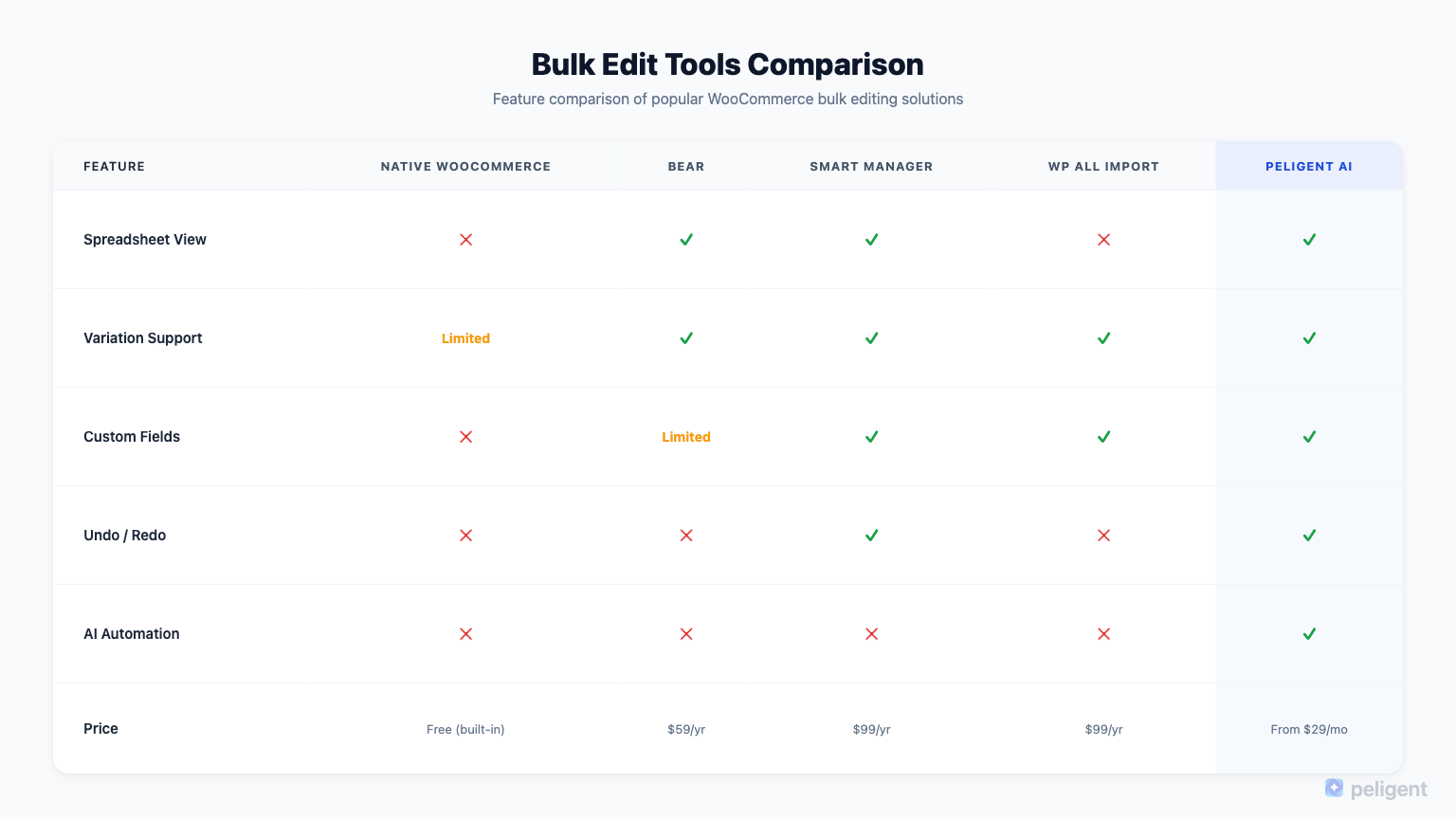
Several excellent plugins fill the gaps left by the native editor. Here are the top options worth considering:
BEAR (Bulk Editor and Products Manager)
BEAR is one of the most popular WooCommerce bulk edit plugins. It provides a spreadsheet-like interface for inline editing of virtually any product field, including custom fields and variations. It supports filtering by category, tag, price range, and stock status, plus undo/redo and CSV export. The free version covers basic needs, while the premium version (around $49/year) unlocks variation editing and advanced filters.
Smart Manager for WooCommerce
Smart Manager takes the spreadsheet approach further with an interface that feels like Excel or Google Sheets. It offers inline editing, batch search and replace, column-level copy/paste, and the ability to manage orders, coupons, and users alongside products. At $149/year it is a premium option, but the unified interface adds real value for customer retention workflows.
WP All Import / WP All Export
WP All Import takes a different approach: export your products to CSV or XML, edit in a spreadsheet application, then reimport. It handles massive catalogs (100,000+ products), offers powerful field mapping, and supports scheduled imports. At $149 for the WooCommerce add-on, it is ideal for large data migrations and supplier feed imports. Steeper learning curve, but unmatched flexibility.
Bulk Edit Products for WooCommerce (by Jesweb)
A lighter alternative focused on simplicity. Clean interface for editing core product fields in bulk without the complexity of full-featured solutions. Good for smaller stores that need something better than the native editor.
One important note: when installing any new plugin, be mindful of potential WordPress plugin conflicts. Bulk edit plugins touch your product database directly, so compatibility issues can cause real problems.
Common Bulk Edit Tasks and How to Handle Them
Bulk Price Updates
The most frequent bulk edit task. The native editor handles percentage and fixed-amount changes for simple products. For variable products, you will need a plugin like BEAR or Smart Manager.
Bulk Description Updates
Rewriting product descriptions across your catalog is one of the highest-impact SEO tasks. This is where AI-powered WooCommerce tools shine, since generating hundreds of optimized descriptions manually is not practical.
Category and Tag Reassignment
The native editor supports bulk category assignment, but for complex hierarchy restructuring, a dedicated plugin gives you much better control.
Stock and Inventory Management
Updating stock quantities, toggling backorder settings, or marking products as out of stock. The native editor works for simple updates; complex inventory setups benefit from a plugin's filtering capabilities.
Image and Media Updates
Most bulk edit plugins handle image URLs, but for enhancing product photos across your catalog, consider AI-powered product photo enhancement tools that process images in batch.
SEO Field Updates
Updating meta titles, descriptions, and keywords across products is critical but tedious. Export/import workflows work well here, though AI tools generate optimized SEO fields far faster.
How AI Is Transforming WooCommerce Bulk Editing
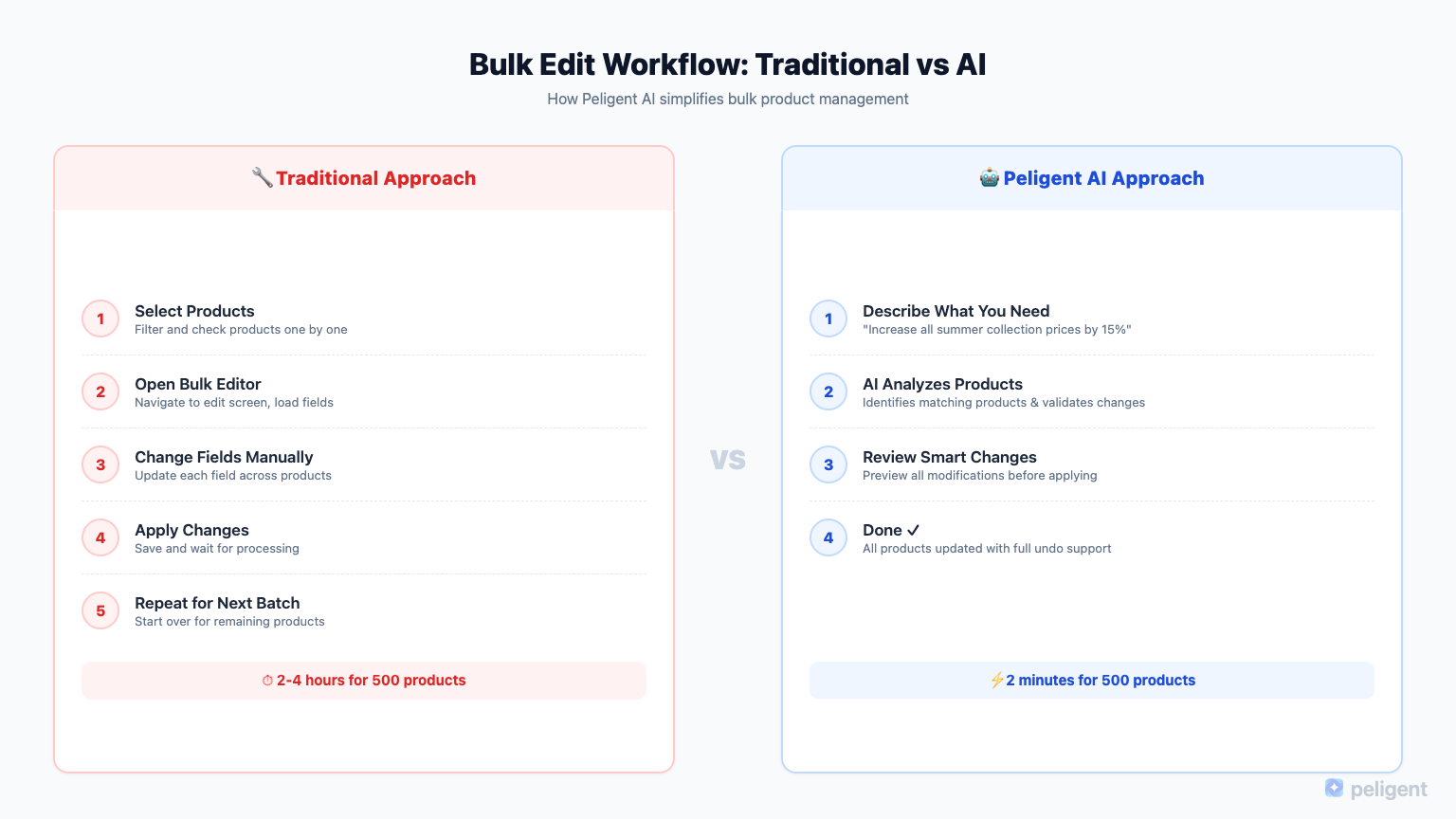
Traditional bulk editing is about doing the same repetitive task faster. AI bulk editing is about eliminating the repetition entirely.
A traditional bulk editor lets you set all selected products to $19.99. An AI-powered tool can analyze pricing data, competitor pricing, and margins, then suggest optimal prices for each product individually.
The rise of AI plugins for WordPress has introduced powerful new capabilities:
- Automated description generation: AI can write unique, SEO-optimized descriptions for hundreds of products, tailored to each item's features and target audience.
- Intelligent categorization: Instead of manually sorting products into categories, AI can analyze product attributes and suggest the best taxonomy placement.
- Smart pricing: AI can factor in cost, demand, competition, and margin targets to recommend pricing across your entire catalog.
- Content optimization: Beyond writing descriptions, AI can audit existing content and suggest improvements for readability, keyword usage, and conversion optimization.
The key technology enabling this is the Model Context Protocol (MCP), which lets AI assistants interact directly with WordPress and WooCommerce. Our guides on WordPress MCP and WooCommerce MCP cover the technical details.
What makes AI-driven bulk editing powerful is context awareness. A traditional plugin applies the same change to every product. An AI assistant understands each product individually and makes tailored changes at scale.
Best Practices and Mistakes to Avoid
Always Back Up Before Bulk Edits
Before any bulk operation, take a full database backup. A single misconfigured edit can wreck your catalog in seconds. A recent backup means recovery in minutes instead of days.
Test on a Small Batch First
Apply changes to 5 to 10 products first. Verify results, then proceed with the full batch. This catches formula errors and miscalculations before they cascade.
Use Filters Carefully
The most dangerous mistakes happen when you forget to apply a filter, updating every product instead of just the ones you intended. Always double-check your selection before clicking "Apply."
Monitor for Errors After Bulk Edits
After significant bulk operations, check your store's front end and review your WooCommerce error logs. Bulk edits can trigger unexpected issues with cached pages or third-party integrations.
Watch Your Site Performance
Large bulk edits generate heavy database activity that can slow your site or cause timeouts. Schedule major operations during low-traffic periods. Proper WordPress speed optimization helps your site recover faster after intensive operations.
Keep a Change Log
Document what you changed, when, and why. A simple note like "March 2: Updated summer category prices +10%" saves hours of detective work later.
How Peligent Handles Bulk Operations Smarter
Peligent takes a fundamentally different approach. Instead of giving you a spreadsheet, Peligent's AI assistant understands what you want and handles it intelligently.
You simply describe what you need: "Increase prices by 10% for all Electronics products with margins below 20%." Peligent identifies the right products, calculates new prices, and applies changes while respecting your business rules.
For product descriptions, Peligent generates unique, optimized content for each product based on its attributes and SEO requirements, not just pasting the same text everywhere. Learn more in our guide to WooCommerce product descriptions.
It also handles tasks traditional editors cannot: analyzing product photos, auditing SEO fields, and identifying pricing inconsistencies. This is the power of a WordPress AI plugin with deep WooCommerce integration.
<a href="https://peligent.com/features/bulk-edit">Traditional bulk edit tools make repetitive tasks faster.</a> Peligent makes them unnecessary.
Frequently Asked Questions
Can I bulk edit WooCommerce products without a plugin?
Yes. WooCommerce includes a native bulk editor accessible from the Products page. You can select multiple products, choose "Edit" from the Bulk Actions dropdown, and modify fields like price, status, categories, and stock. However, the native editor is limited in scope and does not support descriptions, images, custom fields, or product variations.
What is the best free WooCommerce bulk edit plugin?
BEAR (Bulk Editor and Products Manager) offers one of the most capable free versions. It provides a spreadsheet-style interface for editing core product fields. For basic bulk editing needs, the free version is surprisingly robust. Smart Manager also has a free version, though it is more limited.
How do I bulk edit WooCommerce product prices by percentage?
In the native WooCommerce bulk editor, select your products, choose "Edit" from Bulk Actions, and look for the Price fields. You can choose "Increase existing price by (fixed amount or %)" or "Decrease existing price by (fixed amount or %)." Enter the percentage value and click Update. For more complex pricing rules, plugins like BEAR or Smart Manager offer additional options.
Can I bulk edit product variations in WooCommerce?
The native bulk editor does not support variation-level editing. You will need a plugin like BEAR (premium version), Smart Manager, or WP All Import to bulk edit individual product variations. These tools let you filter and edit variations independently from their parent products.
Is it safe to bulk edit thousands of WooCommerce products at once?
It can be, but take precautions. Always back up your database first. Test changes on a small batch before applying to your full catalog. Schedule bulk edits during low-traffic periods to minimize performance impact. And monitor your error logs afterward to catch any issues early.
How can AI help with WooCommerce bulk editing?
AI tools like Peligent go beyond simple bulk editing by understanding context. Instead of applying the same change to every product, AI can generate unique product descriptions, optimize pricing individually, suggest category improvements, and handle complex editing logic through natural language instructions. It turns bulk editing from a repetitive task into an intelligent operation.
What is the difference between bulk editing and CSV import/export?
Bulk editing modifies products directly in your WordPress dashboard. CSV import/export involves exporting data to a spreadsheet, editing externally, and reimporting. CSV workflows suit very large catalogs; in-dashboard editing is faster for routine changes.
Written by
Wana DaliriAI content writer at Peligent. Covering WordPress, WooCommerce, and AI for e-commerce.
Enjoyed this article?
Subscribe to get more WooCommerce insights delivered to your inbox.