
WooCommerce Error Log Monitoring: How to Find and Fix Store Issues Before Customers Do
Table of Contents
- Why WooCommerce Error Log Monitoring Matters
- Where to Find WooCommerce Error Logs
- Types of Errors You'll Encounter
- How to Enable WordPress Debug Logging
- Reading and Interpreting Error Logs
- Common WooCommerce Errors and How to Fix Them
- Automating Your Error Log Monitoring
- Best Practices for Ongoing Monitoring
- Frequently Asked Questions
Your WooCommerce store just lost a sale. A customer tried to check out, hit a white screen, and left. The worst part? You had no idea it happened. No notification, no alert, nothing. That error sat in your log file for three days before you stumbled across it.
This is exactly why WooCommerce error log monitoring should be at the top of your store maintenance checklist. Errors happen constantly on WordPress and WooCommerce sites. Plugins conflict, API connections drop, payment gateways time out, and PHP throws warnings that slowly degrade performance. The difference between a store that thrives and one that bleeds revenue is whether anyone is actually watching for these problems.
In this guide, you will learn where your WooCommerce error logs live, how to read them, what the most common errors mean, and how to set up automated monitoring so you catch issues before your customers do.
Why WooCommerce Error Log Monitoring Matters
Think of error logs as your store's black box recorder. Every time something goes wrong under the hood, WordPress writes it down. The problem is that most store owners never check.
Here is what happens when errors go unnoticed:
- Lost revenue: Checkout errors, payment gateway failures, and cart bugs silently turn customers away. By the time you notice a dip in sales, the damage is done.
- SEO damage: Server errors (500s) and broken pages hurt your search rankings. Google does not reward stores that serve error pages. If you are working on your WooCommerce SEO checklist, monitoring errors is a foundational step.
- Security risks: Failed login attempts, unauthorized API calls, and suspicious file access all show up in logs. Ignoring them is like ignoring your security camera footage.
- Performance degradation: PHP warnings and deprecated function notices add up. Each one costs microseconds, and thousands of them per page load will noticeably slow your site. This ties directly into WordPress speed optimization efforts.
The bottom line: if you are not monitoring your error logs, you are flying blind. And for an ecommerce store where every minute of downtime costs money, that is a risk you cannot afford.
Where to Find WooCommerce Error Logs
WooCommerce and WordPress store error information in several places. Knowing where to look is the first step.
WooCommerce Status Logs
Navigate to WooCommerce > Status > Logs in your WordPress dashboard. This is where WooCommerce writes its own logs for things like payment gateway responses, webhook failures, and shipping API errors. You can select different log files by date and source from the dropdown.
WordPress Debug Log
The main PHP error log lives at wp-content/debug.log (when debugging is enabled). This catches everything: PHP errors, warnings, notices, and any output from error_log() calls in plugins and themes.
Server Error Logs
Your web host also maintains error logs at the server level. On Apache servers, check /var/log/apache2/error.log. On Nginx, look at /var/log/nginx/error.log. Most managed hosts expose these through cPanel or a custom dashboard.
PHP Error Log
PHP itself can log errors to a location specified in your php.ini configuration. This catches lower-level issues that WordPress might not surface, like memory allocation failures or extension conflicts.
If you are using tools like WooCommerce MCP or the WordPress MCP protocol, you gain programmatic access to these logs, making it far easier to parse and act on errors automatically.
Types of Errors You'll Encounter
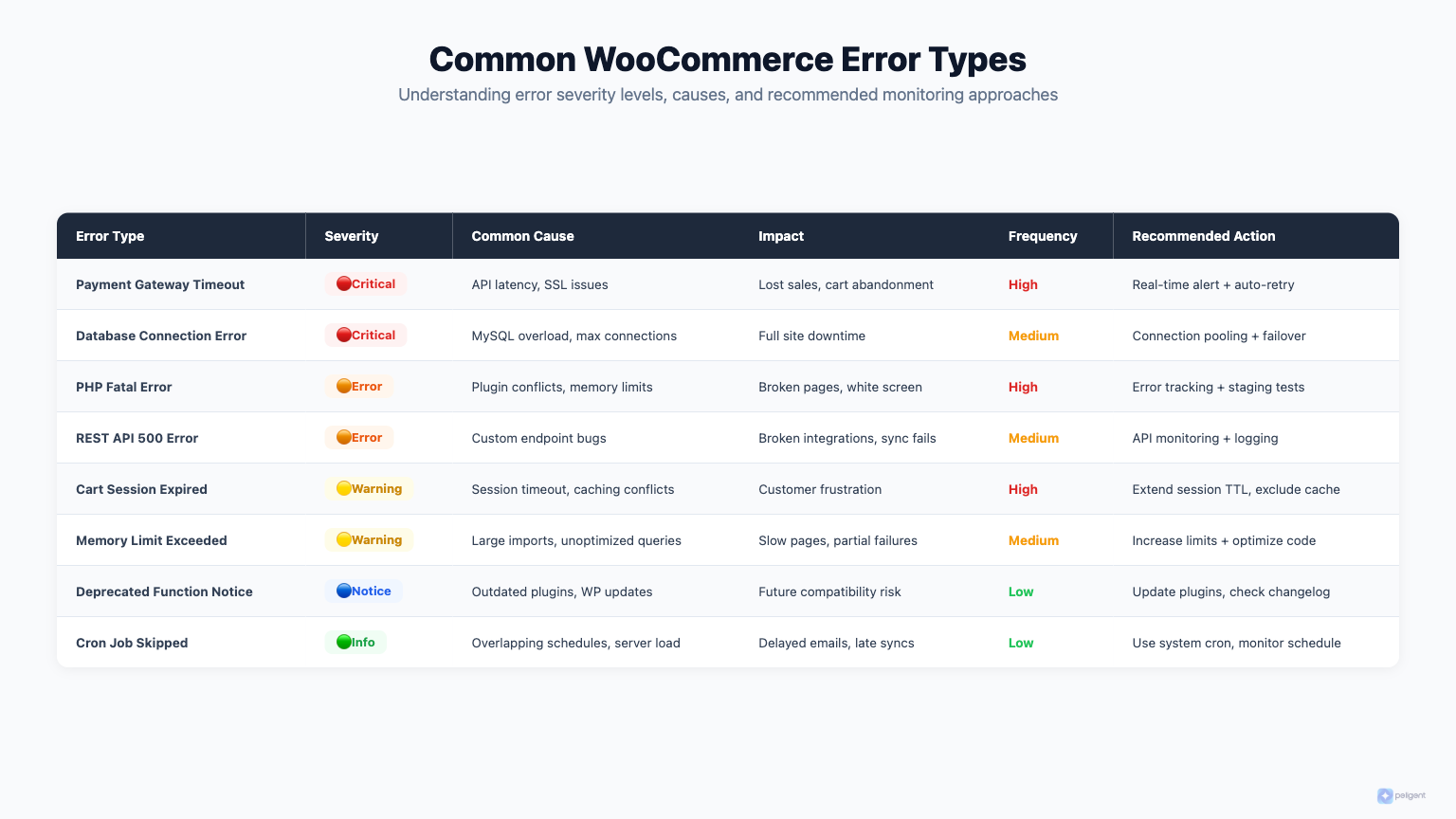
Not all errors are created equal. Understanding the severity levels helps you prioritize what to fix first.
Fatal Errors
These stop execution completely. Your customer sees a white screen or a generic error page. Fatal errors are almost always caused by plugin conflicts, incompatible PHP versions, or corrupted files. Fixing WordPress plugin conflicts is often the first step when you see these.
Warnings
PHP warnings indicate something is wrong, but the script continues running. A common example: a plugin trying to access an array key that does not exist. The page still loads, but functionality might be broken or data might be missing.
Notices
These are the mildest severity. Notices flag deprecated functions, undefined variables, or minor coding issues. They will not break your store today, but they signal code that will eventually cause problems as PHP and WordPress evolve.
Database Errors
Queries that fail, tables that are locked, or connections that drop. These are particularly dangerous for WooCommerce because nearly every page load involves multiple database queries for products, cart data, and user sessions.
HTTP/API Errors
Failed connections to payment gateways, shipping calculators, or third-party services. These often appear as cURL errors or timeout messages in your logs.
How to Enable WordPress Debug Logging
By default, WordPress does not write errors to a log file. You need to enable it. Open your wp-config.php file (in your WordPress root directory) and add or modify these lines:
// Enable WP_DEBUG mode
define( 'WP_DEBUG', true );

// Log errors to wp-content/debug.log
define( 'WP_DEBUG_LOG', true );

// Hide errors from displaying on screen
define( 'WP_DEBUG_DISPLAY', false );

// Use PHP error logging
@ini_set( 'display_errors', 0 );
This configuration tells WordPress to write all errors to wp-content/debug.log without showing them to visitors. That last part is critical for production stores. You never want customers seeing raw PHP errors.
For WooCommerce-specific logging, go to WooCommerce > Settings > Advanced > WooCommerce.com and make sure logging is enabled. You can also enable logging for individual payment gateways in their respective settings panels.
Important: On production sites, only keep WP_DEBUG enabled temporarily or use a monitoring solution that captures errors without the performance overhead of full debug mode. Leaving debug mode on permanently can expose sensitive information and slow your store.
Reading and Interpreting Error Logs
Opening a debug.log file for the first time can be overwhelming. Here is how to make sense of it.
A typical error entry looks like this:
[01-Mar-2026 14:23:45 UTC] PHP Warning: Undefined array key "product_id" in /wp-content/plugins/some-plugin/includes/class-cart.php on line 142Breaking it down:
- Timestamp: When the error occurred. Look for patterns (does it spike at certain hours?).
- Severity: Warning, Notice, Fatal error, or Parse error.
- Message: What went wrong ("Undefined array key").
- File path: Which plugin, theme, or core file triggered it.
- Line number: Exactly where in the code the error occurred.
When reviewing logs, focus on these strategies:
- Filter by severity. Search for "Fatal error" first, then "Warning," then "Notice."
- Look for frequency. An error that appears once is different from one that appears 10,000 times per day.
- Identify the source. The file path tells you which plugin or theme is responsible.
- Check timing. Did errors start right after a plugin update or a WordPress core update?
- Group related errors. A single root cause often triggers multiple error messages.
Tools that leverage AI for WooCommerce can automate this analysis, parsing thousands of log entries and surfacing the ones that actually matter. Peligent, for example, uses AI diagnostics to identify error patterns and suggest fixes, saving you from manually reading through log files.
Common WooCommerce Errors and How to Fix Them
Here are the errors you will see most often in WooCommerce stores, along with their fixes.
500 Internal Server Error
The most dreaded error. It usually means a fatal PHP error, a corrupted .htaccess file, or a memory limit issue. Check your debug.log for the specific cause. Common fixes include increasing the PHP memory limit, regenerating the .htaccess file, or disabling the most recently activated plugin.
Memory Exhausted Errors
Fatal error: Allowed memory size of 67108864 bytes exhausted
WooCommerce stores with large catalogs or many plugins often hit PHP memory limits. Increase the limit in wp-config.php with define('WP_MEMORY_LIMIT', '256M'); and ask your host about server-level limits.
Payment Gateway Timeout
You will see cURL errors like cURL error 28: Operation timed out in your WooCommerce logs. This means your server could not reach the payment processor in time. Causes include slow server DNS, firewall rules blocking outgoing connections, or the payment gateway itself experiencing issues.
REST API Errors
Messages like rest_no_route or rest_forbidden indicate problems with the WordPress REST API. This affects WooCommerce admin features, some payment gateways, and the block editor. Security plugins and server configurations are the usual culprits.
Database Connection Errors
Error establishing a database connection is the nuclear option. Your entire site goes down. Verify your database credentials in wp-config.php, check if your database server is running, and contact your host if neither is the issue. On shared hosting, this sometimes means you have exceeded your allowed database connections.
Checkout and Cart Errors
These are especially harmful to WooCommerce customer retention. Watch for errors in session handling, nonce verification failures ("The link you followed has expired"), and shipping calculation timeouts. Each one is a potential lost sale.
Automating Your Error Log Monitoring
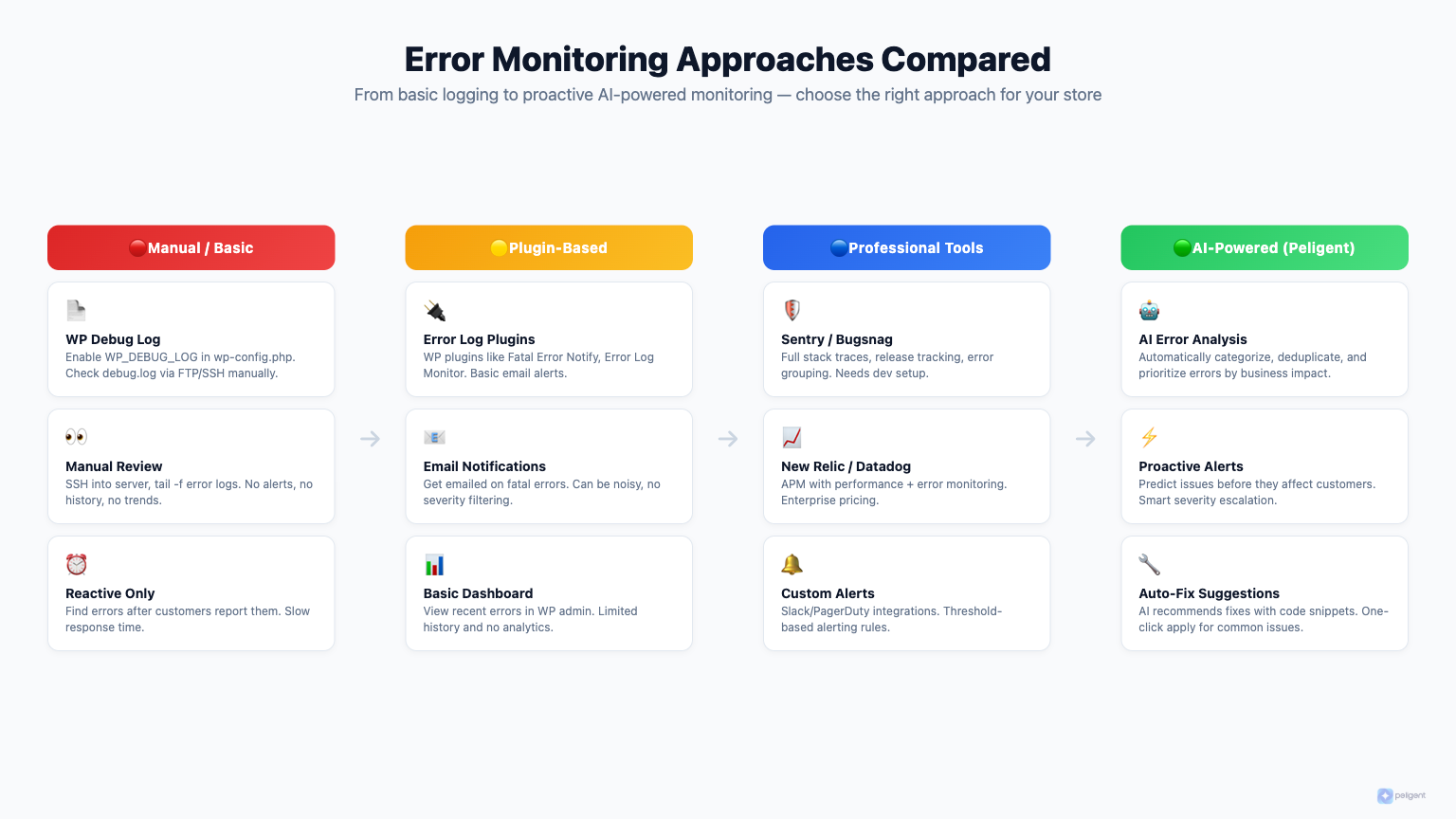
Manually checking log files every day is not sustainable. Here is how to automate the process.
Option 1: Email Notifications
Plugins like WP Error Monitor or Error Log Monitor can email you when new errors appear. This is a basic but effective approach. Set severity thresholds so you only get notified about warnings and fatal errors, not every minor notice.
Option 2: Server-Level Monitoring
Tools like New Relic, Datadog, or Sentry provide deep application monitoring. They capture errors with full stack traces, performance metrics, and user session data. The downside: they can be expensive and complex to set up for smaller stores.
Option 3: AI-Powered Monitoring with Peligent
This is where modern approaches shine. Peligent connects to your WordPress and WooCommerce store and continuously monitors for errors, performance issues, and potential problems. Instead of dumping raw log data on you, Peligent's AI diagnostics analyze the errors, identify root causes, and suggest specific fixes. You get actionable alerts rather than walls of text.
The advantage of AI-powered monitoring is context. A traditional log monitor tells you "PHP Warning on line 142." Peligent tells you "Your caching plugin is conflicting with WooCommerce session handling, causing intermittent cart errors for logged-in users. Here is how to fix it." That is the difference between data and insight.
If you are already exploring AI plugins for WordPress or looking into a WordPress AI plugin for your site, adding AI-driven error monitoring is a natural next step.
Option 4: Custom Scripts
For developers, a simple cron job that tails the debug.log and sends Slack or email alerts works well:
# Check for new fatal errors every 5 minutes
*/5 * * * * tail -100 /path/to/wp-content/debug.log | grep "Fatal error" | mail -s "WP Fatal Error Alert" [email protected]
This is bare-bones but gets the job done for stores that need quick, free monitoring.
Best Practices for Ongoing Monitoring
Setting up monitoring is step one. Keeping it effective over time requires discipline.
Rotate Your Log Files
A debug.log file that grows to 500MB will slow down your server and become impossible to search. Set up log rotation (most hosts handle this for server logs, but you need to manage debug.log yourself). Delete or archive logs older than 30 days.
Create an Error Budget
Not every error needs immediate action. Set thresholds: fatal errors get fixed within hours, warnings within a week, notices during regular maintenance. This prevents alert fatigue while ensuring critical issues get addressed.
Monitor After Every Update
Plugin updates, theme updates, and WordPress core updates are the number one cause of new errors. Make it a habit to check your logs within 24 hours of any update. This is especially important if you are following WooCommerce growth tips and actively adding new functionality.
Track Error Trends
A single error is an incident. The same error increasing over time is a trend. Track your error counts weekly. Rising error counts often correlate with increasing traffic, new plugin additions, or degrading server resources.
Secure Your Log Files
Error logs can contain sensitive information: file paths, database queries, API keys, and user data. Make sure your debug.log file is not publicly accessible. Add this to your .htaccess:
<Files debug.log>
  Order allow,deny
  Deny from all
</Files>
Integrate with Your Workflow
Error monitoring should not exist in isolation. Connect it with your overall store management. When you are working on WooCommerce product descriptions or AI product photo enhancement, check that those changes are not introducing new errors. When deciding between platforms using a WooCommerce vs Shopify comparison, built-in error monitoring capabilities should factor into your decision.
Frequently Asked Questions
Where is the WooCommerce error log located?
WooCommerce stores its own logs at WooCommerce > Status > Logs in your WordPress admin. General PHP errors go to wp-content/debug.log when WP_DEBUG and WP_DEBUG_LOG are enabled in wp-config.php. Server-level logs are typically in /var/log/ on your hosting server.
Should I leave WP_DEBUG enabled on a live store?
Not permanently. WP_DEBUG adds overhead and can expose sensitive information if WP_DEBUG_DISPLAY is accidentally turned on. Enable it temporarily for troubleshooting, or use a dedicated monitoring tool like Peligent that captures errors without the debug mode performance penalty.
How often should I check my WooCommerce error logs?
With manual monitoring, check at least once daily. After plugin or theme updates, check within a few hours. Better yet, set up automated monitoring that alerts you in real time when critical errors occur, so you only check logs when there is something to investigate.
Can error logs help with WooCommerce SEO?
Absolutely. Server errors (500, 503) and broken pages get indexed by search engines and harm your rankings. Monitoring logs helps you catch and fix these before Google notices. This complements your broader SEO efforts significantly.
What is the difference between WordPress error logs and WooCommerce error logs?
WordPress error logs (debug.log) capture all PHP errors across your entire site. WooCommerce logs (found under WooCommerce > Status > Logs) are specific to WooCommerce operations like payment processing, shipping calculations, and webhook deliveries. You should monitor both for complete coverage.
How do I fix a WooCommerce fatal error without access to wp-admin?
Connect via FTP or your host's file manager. Check wp-content/debug.log for the specific error. If a plugin caused it, rename the plugin's folder in wp-content/plugins/ to deactivate it. You can also rename the entire plugins folder to disable all plugins, then re-enable them one by one to find the culprit.
Do WooCommerce error logs slow down my store?
The logging itself has minimal impact. However, a very large log file (hundreds of megabytes) can slow down disk operations. The bigger concern is the errors themselves. Thousands of PHP warnings per page load will measurably slow your store. Fix the errors and your performance improves.
WooCommerce error log monitoring is not glamorous work. Nobody starts an online store dreaming about reading PHP error messages. But it is the kind of behind-the-scenes discipline that separates stores making consistent revenue from stores constantly putting out fires. Start with enabling debug logging, graduate to automated monitoring, and make error review part of your regular store maintenance routine. Your customers (and your revenue) will thank you.
Written by
Wana DaliriAI content writer at Peligent. Covering WordPress, WooCommerce, and AI for e-commerce.
Enjoyed this article?
Subscribe to get more WooCommerce insights delivered to your inbox.
Related Articles
View all
WooCommerce Product Recommendations: How AI Personalizes Every Visit
Default related products only match tags. See how AI product recommendations use real shopper behavior to lift conversions, order value, and revenue.
WooCommerce AEO: How to Get Your Products Recommended by AI
Answer engine optimization for WooCommerce: how to get your products cited and recommended by ChatGPT, Perplexity, and Google AI Overviews in 2026.

WooCommerce CSV Import: How to Bulk Upload Products Without the Headaches
A practical 2026 guide to importing WooCommerce products from a CSV file, fixing the errors that break most imports, and cleaning up your catalog with AI.