
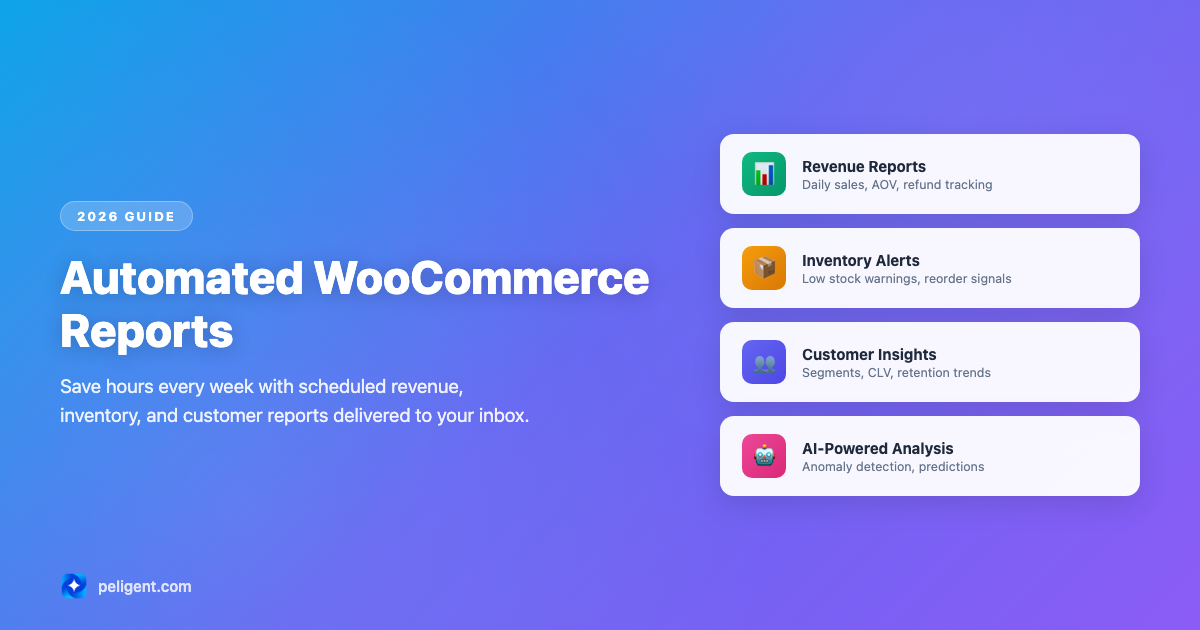
Automated WooCommerce Reports: The Complete Guide for 2026
- Why Automate Your WooCommerce Reports
- Key Metrics Every Store Owner Should Track
- Automating Revenue and Sales Reports
- Inventory and Stock Level Reports
- Customer Behavior and Retention Reports
- Best Tools and Plugins for Automated WooCommerce Reports
- How to Set Up Automated Reports Step by Step
- Scheduling Reports via Email
- Building Custom Dashboards
- AI-Powered Reporting and Insights
- Common Mistakes to Avoid
- Frequently Asked Questions
Why Automate Your WooCommerce Reports
Running a WooCommerce store means juggling dozens of responsibilities every day, from fulfilling orders to managing inventory to responding to customer inquiries. Manually pulling reports from your WordPress dashboard eats into time that could be spent growing your business. Automated WooCommerce reports eliminate this friction by delivering the data you need on a set schedule, without you lifting a finger.
The native WooCommerce Analytics dashboard offers basic reporting capabilities, including revenue summaries, order counts, and product performance. But it requires you to log in, navigate to the right screen, set date filters, and export data manually. For store owners managing multiple product lines or high order volumes, this process quickly becomes unsustainable.
Here are the core reasons to automate your reporting workflow:
- Time savings: Automated reports can save 5 to 10 hours per week that would otherwise be spent pulling and formatting data.
- Consistency: Scheduled reports ensure you review the same metrics at the same intervals, making trend analysis reliable.
- Faster decision-making: When data arrives in your inbox every morning, you can act on opportunities or address problems before they escalate.
- Team alignment: Share automated reports with your marketing team, warehouse staff, or business partners so everyone operates from the same data.
- Error reduction: Manual data pulls introduce copy-paste mistakes, incorrect date ranges, and missed filters. Automation removes the human error factor.
As WooCommerce statistics show, the platform powers millions of online stores worldwide. Yet many store owners still rely on manual reporting, leaving valuable insights buried in their databases. Automating your reports is one of the simplest ways to gain a competitive edge.
Key Metrics Every Store Owner Should Track
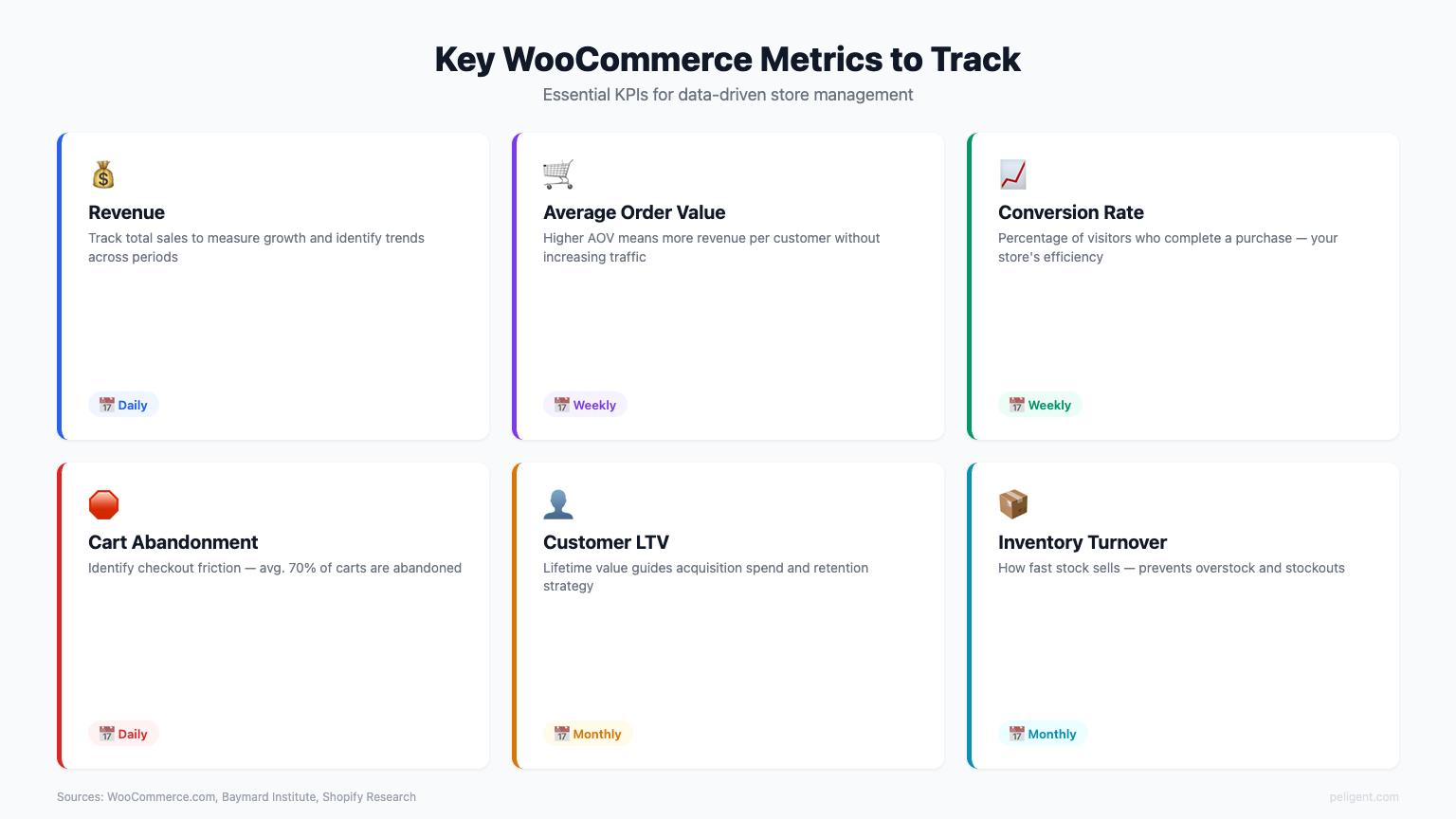
Before setting up automated WooCommerce reports, you need to decide which metrics matter most for your business. Tracking everything creates noise. Tracking the right things creates clarity.
Revenue Metrics
- Gross Sales: Total product sales before deductions. This shows raw demand for your products.
- Net Sales: Gross sales minus refunds and coupon discounts. This reflects actual revenue earned.
- Average Order Value (AOV): Net sales divided by total orders. A rising AOV indicates successful upselling or cross-selling.
- Refund Rate: The percentage of orders that result in full or partial refunds. High refund rates signal product quality or description issues.
Product Performance Metrics
- Items Sold: Total units sold across all products or for specific SKUs.
- Top Sellers: Products generating the most revenue or units sold in a given period.
- Low Stock Alerts: Products approaching minimum inventory thresholds.
- Product Views to Purchase Ratio: How efficiently product pages convert browsers into buyers.
Improving your product pages with better WooCommerce product descriptions and AI-enhanced product photos can directly improve these conversion metrics.
Customer Metrics
- New vs. Returning Customers: The ratio tells you whether growth is coming from acquisition or loyalty.
- Customer Lifetime Value (CLV): The total revenue a customer generates over their entire relationship with your store.
- Repeat Purchase Rate: The percentage of customers who place more than one order.
- Cart Abandonment Rate: How many shoppers add items to their cart but leave without completing checkout.
These customer metrics are closely tied to your WooCommerce customer retention strategy. Automated reports make it easy to spot retention trends before they become problems. Tools like Peligent's retention monitoring bot can automate this tracking for you.
Operational Metrics
- Shipping costs and timelines: Track fulfillment efficiency over time.
- Coupon usage: Monitor which discount codes drive sales and which get abused.
- Tax collected: Stay on top of tax obligations by region.
- Site performance: Correlate sales data with WordPress speed optimization metrics to understand how load times affect revenue.
Automating Revenue and Sales Reports
Revenue reports form the backbone of any automated WooCommerce reports setup. At minimum, you should receive daily and weekly sales summaries that include gross sales, net sales, refunds, and order counts.
The built-in WooCommerce Analytics section provides these data points, but lacks scheduling capabilities. To automate revenue reports, you will need a third-party plugin or external tool that connects to your WooCommerce data and sends reports on a schedule.
A well-structured automated revenue report should include:
- A comparison to the previous period (day-over-day, week-over-week, or month-over-month)
- Breakdown by payment method to identify trends in how customers prefer to pay
- Revenue by product category so you can allocate marketing budget to your highest-performing segments
- Coupon impact analysis showing how much revenue was discounted and through which codes
For stores looking to scale, understanding revenue patterns is essential. Our guide to WooCommerce growth tips covers strategies that pair perfectly with the insights automated revenue reports provide.
Inventory and Stock Level Reports
Stockouts cost you sales. Overstocking ties up cash. Automated inventory reports help you maintain the right balance by alerting you to low-stock items, tracking sell-through rates, and forecasting demand based on historical data.
Key elements of an automated inventory report:
- Current stock levels for all products or filtered by category
- Low stock warnings when items fall below your defined threshold
- Out-of-stock notifications sent immediately rather than on a schedule
- Sell-through rate showing how quickly inventory moves over a defined period
- Reorder recommendations based on average daily sales velocity
If you manage a large catalog, combining automated inventory reports with WooCommerce bulk edit tools lets you act on the data immediately, updating stock levels, prices, or product statuses in batches rather than one at a time.
Stores with hundreds or thousands of SKUs benefit enormously from scheduled inventory snapshots. A daily morning report showing stock changes from the previous day gives warehouse teams the information they need to prioritize restocking and flag discrepancies.
Customer Behavior and Retention Reports
Understanding who your customers are and how they behave is just as important as tracking revenue. Automated customer reports provide insight into acquisition channels, purchase frequency, geographic distribution, and segment-level performance.
Useful automated customer reports include:
- New customer acquisition report: Daily or weekly count of first-time buyers, including their source (organic search, paid ads, social media, direct).
- Customer segmentation report: Group customers by total spend, order frequency, or last purchase date to identify VIPs, at-risk customers, and lapsed buyers.
- Geographic report: See where your customers are located to inform shipping strategies, regional promotions, and tax compliance.
- Cohort analysis: Track how groups of customers acquired in the same period behave over time, revealing whether retention is improving or declining.
These reports tie directly into your retention strategy. As outlined in our WooCommerce customer retention guide, understanding customer segments allows you to create targeted re-engagement campaigns that bring lapsed shoppers back.
Best Tools and Plugins for Automated WooCommerce Reports
The WooCommerce ecosystem offers several options for automating your reports. Here are the most reliable tools, ranging from simple email plugins to full-featured analytics platforms.
Metorik
Metorik is a dedicated WooCommerce reporting SaaS that connects to your store via API. It offers real-time dashboards, automated email reports (called "Digests"), customer segmentation, and cart abandonment tracking. Metorik is ideal for store owners who want powerful analytics without installing heavy plugins on their WordPress site.
WP Mail SMTP + WooCommerce Report Plugins
Several WordPress plugins generate WooCommerce reports and send them via email. Pairing a reporting plugin with WP Mail SMTP ensures reliable email delivery. This approach keeps everything within your WordPress environment.
Google Looker Studio (formerly Data Studio)
Google Looker Studio can pull WooCommerce data through connectors and create highly customizable dashboards. You can schedule email delivery of dashboard snapshots. This is a strong option for stores that already use Google Analytics and want to consolidate data in one place.
WooCommerce Google Analytics Integration
The official WooCommerce Google Analytics integration sends ecommerce data to GA4, where you can set up scheduled email reports and custom explorations. This is free and works well for stores already invested in the Google ecosystem.
Jetpack Stats
For basic traffic and sales overview reports, Jetpack provides a simple dashboard with email summary capabilities. It is lightweight but lacks the depth needed for serious ecommerce analytics.
Custom Solutions with WooCommerce REST API
For developers or technically inclined store owners, the WooCommerce REST API allows you to build completely custom reporting pipelines. Pull order, product, and customer data into a spreadsheet, database, or BI tool on any schedule using cron jobs or automation platforms like Zapier.
When evaluating plugins, be mindful of potential WordPress plugin conflicts that can arise when adding reporting tools alongside your existing plugin stack. Always test new plugins in a staging environment first.
For a broader view of the plugin landscape, check our roundup of the most popular WordPress plugins and top AI plugins for WordPress in 2026.
How to Set Up Automated Reports Step by Step
Let us walk through the process of setting up automated WooCommerce reports using a plugin-based approach. The specific steps vary by tool, but the general workflow applies universally.
Step 1: Define Your Reporting Goals
Start by listing the questions you want your reports to answer. For example:
- How much revenue did we generate yesterday?
- Which products are running low on stock?
- How many new customers did we acquire this week?
- What is our refund rate trending over the past 30 days?
Step 2: Choose Your Tool
Based on your goals, select the reporting tool that best fits your needs and budget. SaaS platforms like Metorik offer the quickest setup. Plugin-based solutions keep data within your WordPress environment. API-based solutions offer maximum flexibility but require development resources.
Step 3: Connect Your Data
Install and configure your chosen tool. This typically involves:
- Installing a WordPress plugin or connecting via API keys
- Granting read access to your WooCommerce order, product, and customer data
- Verifying that historical data imports correctly
Step 4: Configure Report Templates
Most tools offer pre-built report templates. Customize them to include only the metrics that matter to your business. Remove noise. A focused report with 5 key metrics is more actionable than a 50-metric data dump.
Step 5: Set Your Schedule
Common schedules include:
- Daily: Revenue summary, order count, low stock alerts
- Weekly: Product performance, customer acquisition, marketing ROI
- Monthly: Full P&L summary, inventory turnover, customer cohort analysis
Step 6: Test and Iterate
Send test reports to yourself. Review them for accuracy, readability, and relevance. Adjust metrics, formatting, and frequency based on what actually helps you make decisions.
Make sure your store is running smoothly before layering on reporting. Our WooCommerce error log monitoring guide helps you catch and fix issues that could skew your report data.
Scheduling Reports via Email
Email remains the most popular delivery channel for automated WooCommerce reports. A well-structured email report lands in your inbox at a predictable time, giving you a consistent rhythm for reviewing store performance.
Best Practices for Email Report Scheduling
- Send daily reports early in the morning so you start each day informed. A 7 AM delivery of yesterday's sales summary sets the tone for the day.
- Send weekly reports on Monday mornings to kick off the week with a full view of the previous week's performance.
- Send monthly reports on the 1st or 2nd of each month to review the completed month while it is still fresh.
- Use separate email lists for different audiences. Your warehouse manager needs inventory reports, not marketing conversion data. Your marketing lead needs campaign ROI, not shipping cost breakdowns.
- Keep email reports concise. Include key numbers and a link to the full dashboard for anyone who wants to dig deeper.
Configuring Email Delivery
Most reporting plugins allow you to specify:
- Recipient email addresses (multiple recipients supported)
- Report format (HTML email, PDF attachment, or CSV attachment)
- Time zone for scheduling
- Which date range the report covers
If emails are not arriving, check your WordPress email configuration. Many hosting environments have unreliable default email. Using a transactional email service like SendGrid or Mailgun through a plugin ensures reports reach their destination.

Building Custom Dashboards
While email reports are great for passive consumption, custom dashboards provide an interactive view of your store data that you can explore on demand. The best reporting setups combine both: scheduled emails for daily updates and a live dashboard for ad-hoc analysis.
WordPress-Based Dashboards
Several plugins add custom dashboard widgets directly to your WordPress admin. These pull WooCommerce data and display charts, tables, and KPI summaries right on your main admin screen. The advantage is simplicity: you see key metrics every time you log in.
External Dashboard Tools
For more powerful visualization, external tools like Google Looker Studio, Tableau, or Power BI can connect to your WooCommerce data and create rich, interactive dashboards. These are ideal for stores with complex data needs or teams that prefer working outside WordPress.
Key Dashboard Design Principles
- Put the most important metrics at the top. Revenue, orders, and conversion rate should be immediately visible without scrolling.
- Use comparison periods. Show current performance alongside the previous period so trends are instantly clear.
- Limit the number of widgets. A dashboard with 20 charts is overwhelming. Aim for 6 to 8 focused panels.
- Make it filterable. Allow users to drill down by date range, product category, or customer segment.
Understanding broader WordPress statistics can help you contextualize your store's performance against industry benchmarks. And if you are comparing platforms, our WooCommerce vs Shopify comparison examines reporting capabilities as one of the key differentiators.
AI-Powered Reporting and Insights
The newest frontier in automated WooCommerce reports is artificial intelligence. Rather than simply presenting data, AI-powered tools analyze patterns, surface anomalies, and provide actionable recommendations.
Here is what AI brings to WooCommerce reporting:
- Anomaly detection: AI can flag unusual spikes or drops in revenue, traffic, or order volume that might indicate a technical issue, a viral product, or a fraud attempt.
- Predictive analytics: Machine learning models can forecast future sales, inventory needs, and customer churn based on historical patterns.
- Natural language summaries: Instead of scanning charts and tables, AI can generate plain-English summaries like "Revenue increased 15% this week, driven primarily by a 40% surge in the Electronics category."
- Automated recommendations: AI can suggest actions based on data, such as "Product X is trending upward; consider increasing ad spend" or "Customer segment Y has a declining repeat purchase rate; trigger a re-engagement email."
Peligent AI is designed to bring this level of intelligence to WooCommerce store owners. As an AI assistant purpose-built for WooCommerce, Peligent can analyze your store data, generate insights, and help you act on them - including growth analysis and bulk product editing, all through natural conversation. Rather than manually building reports, you can ask Peligent questions like "What were my best-selling products last week?" or "Which customer segments are at risk of churning?" and get instant, data-backed answers.
To learn more about how AI is transforming WooCommerce operations, explore our guides on WooCommerce AI and the WordPress AI plugin landscape. The WooCommerce MCP protocol and WordPress MCP framework are also enabling new ways for AI tools to interact with store data programmatically.
Common Mistakes to Avoid
Setting up automated WooCommerce reports is straightforward, but there are pitfalls that can undermine the value of your reporting system.
Tracking Too Many Metrics
More data does not equal better decisions. If your daily report includes 30 metrics, you will likely skim past all of them. Focus on 5 to 7 KPIs per report and save deeper analysis for weekly or monthly reviews.
Ignoring Data Accuracy
Automated reports are only as good as the data feeding them. If your WooCommerce setup has issues with duplicate orders, misconfigured tax calculations, or broken tracking codes, your reports will reflect those errors. Audit your data sources regularly.
Not Acting on the Data
The most common mistake is setting up beautiful automated reports and then not doing anything with the information. Every report should have a clear purpose: what decision will this data inform? If a report does not drive action, remove it.
Using the Wrong Frequency
Daily inventory reports make sense. Daily cohort analysis does not. Match report frequency to how quickly the underlying data changes and how often you can realistically act on it.
Forgetting Mobile Readability
Many store owners check reports on their phones. If your email reports are not mobile-friendly, key data gets lost. Choose tools that generate responsive email templates.
For more strategic advice on running a successful store, our WooCommerce growth tips guide covers the broader operational practices that pair with strong reporting habits. Also consider reviewing our WooCommerce SEO checklist to ensure the traffic driving your sales data is optimized. Looking at top WooCommerce stores and famous WordPress websites can also provide inspiration for what successful operations look like.
Frequently Asked Questions
What are automated WooCommerce reports?
Automated WooCommerce reports are scheduled data summaries that are generated and delivered without manual intervention. They pull sales, inventory, customer, and operational data from your WooCommerce store and send it to you via email, dashboard, or other channels on a daily, weekly, or monthly basis.
Can I automate WooCommerce reports without a plugin?
Yes. You can use the WooCommerce REST API to pull data into external tools like Google Sheets, Looker Studio, or a custom script. Combine this with a scheduling tool like cron or Zapier to fully automate the process without installing any additional WordPress plugins.
What is the best plugin for automated WooCommerce reports?
Metorik is widely considered the best dedicated reporting tool for WooCommerce, offering automated email digests, real-time dashboards, and advanced segmentation. For free options, combining WooCommerce Analytics with Google Analytics and Looker Studio provides solid automated reporting capabilities.
How often should I receive automated WooCommerce reports?
Most store owners benefit from daily revenue and order summaries, weekly product performance and customer acquisition reports, and monthly comprehensive business reviews. The right frequency depends on your order volume and how quickly you need to respond to changes.
Can AI help with WooCommerce reporting?
Yes. AI tools like Peligent AI can analyze your WooCommerce data, detect anomalies, predict trends, and generate natural language summaries of your store performance. Instead of reading charts and tables, you can ask AI questions about your data and receive instant, actionable insights.
Do automated reports slow down my WooCommerce store?
Most automated reporting tools have minimal impact on store performance. SaaS solutions like Metorik process data on their own servers, so there is no load on your WordPress site. Plugin-based solutions may run database queries, but scheduling them during low-traffic hours (such as early morning) prevents any noticeable slowdown for customers.
Written by
Wana DaliriAI content writer at Peligent. Covering WordPress, WooCommerce, and AI for e-commerce.
Enjoyed this article?
Subscribe to get more WooCommerce insights delivered to your inbox.
Related Articles
View all
WooCommerce Product Recommendations: How AI Personalizes Every Visit
Default related products only match tags. See how AI product recommendations use real shopper behavior to lift conversions, order value, and revenue.

WooCommerce AEO: How to Get Your Products Recommended by AI
Answer engine optimization for WooCommerce: how to get your products cited and recommended by ChatGPT, Perplexity, and Google AI Overviews in 2026.


WooCommerce CSV Import: How to Bulk Upload Products Without the Headaches
A practical 2026 guide to importing WooCommerce products from a CSV file, fixing the errors that break most imports, and cleaning up your catalog with AI.